
QUOTIFY
Write a quotation, estimate, proposal or proforma invoice beside a live preview, with GST or VAT, sections, optional add-ons and your signature, and save it as a PDF or PNG
Guide reviewed 6 October 2026 by Milan Salvi. How we write and correct guides.
Open QUOTIFY →Step-by-step help guide and questions and answers for this tool.
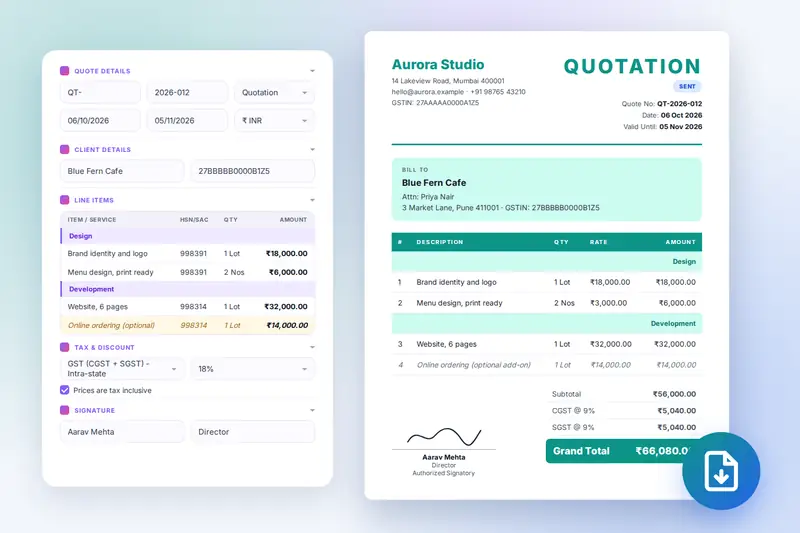
Table of Contents
Overview
QUOTIFY is a free quotation generator that runs entirely in your browser. The page is an editor beside a live preview: you enter your company once, add the client, list the work in line items with codes and units, grouped in sections if you like, set the tax and a discount, write the notes and terms, sign, and the finished document redraws on the right with every keystroke. PDF opens the print dialog with only the quote on the page; PNG makes a picture for messaging apps.
It was built for the offer that comes before the invoice: a designer quoting a website in three sections with optional extras, a contractor estimating a job by the point, a consultant proposing a retainer, an exporter sending a proforma invoice so the buyer can arrange payment. The title is yours to choose (Quotation, Estimate, Proposal or Proforma Invoice), GST is handled the Indian way with CGST and SGST or IGST, HSN or SAC codes and GSTINs, and VAT, a custom tax and ten currencies cover clients elsewhere. Saved quotes carry a status from draft to accepted, clients and repeat items are kept in lists, and an analytics window sums it up.
There is no account and no server. Quotes, clients, the catalog, settings and your company details are stored in your browser on your own device, and the PDF and the PNG are made there too. Nothing is uploaded, which also means the tool keeps working without an internet connection once the page has loaded.
Key Features
Live Preview
The quote sits beside the editor and redraws as you type, so what you export is exactly what you saw. On phones it moves above the editor.
Four Document Titles
Quotation, Estimate, Proposal or Proforma Invoice, with a version number for revisions and a status badge from Draft to Accepted.
GST, VAT or Custom Tax
GST split into CGST and SGST or charged as IGST at any of the five slabs, VAT at your rate, or a tax with a name of your own, inclusive or exclusive of the prices.
Sections and Optional Add-ons
Group the lines under headings, pull repeat items from a catalog, and mark extras as optional: listed on the quote but kept out of the total.
Signature and Amount in Words
Draw your signature on the pad or upload an image, add the signatory's name and designation, and print the total in words in the Indian style.
Ten Currencies
INR, USD, EUR, GBP, AED, AUD, CAD, SGD, JPY and CNY, chosen per quote, with Indian digit grouping and a default in Settings.
Five Themes
Corporate, Minimal, Creative, Bold and Elegant, with a primary colour of your own on top. The paper stays the same in the site's dark theme.
Quotes, Clients, Catalog, Analytics
Saved quotes with status, a client list, a catalog of repeat items, an analytics window and one backup file. Ctrl+N, S, O, D, P and Enter cover the common actions.
How to Use
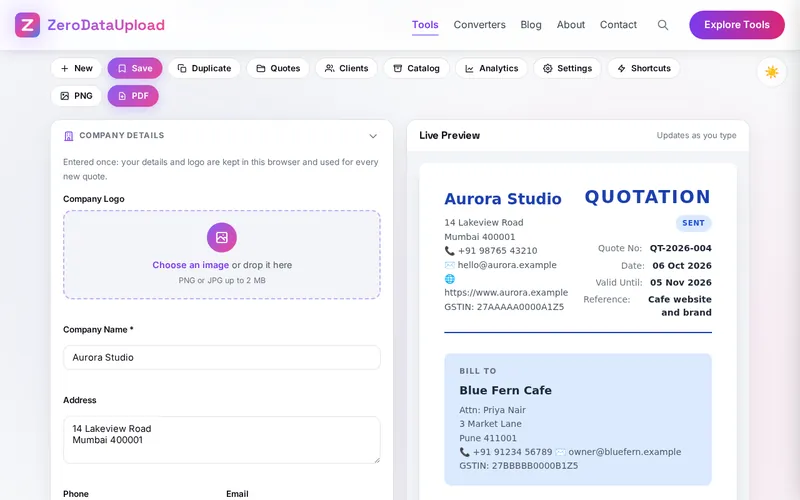
- Enter your company once - Name, address, phone, email, GSTIN and website, and drop your logo on the upload box. They are kept in this browser and come back on every new quote.
- Set the quote details - The number is generated from the year and a counter behind your prefix; the date is today and the validity thirty days. Choose the currency, the title, the version and the status, and add a project reference.
- Add the client - Pick a saved client from the drop-down or type the company, contact person, address, email, phone and GSTIN. Tick "Save this client" to keep them for next time.
- Add the line items - Add Line Item (or Ctrl+Enter) adds a row: name, description, HSN or SAC code, quantity and unit, rate. Add Section groups lines under a heading; From Catalog adds a repeat item; "Optional add-on" marks an extra.
- Tax and discount - Choose GST (CGST + SGST or IGST) and the slab, VAT or a custom tax, tick "Prices are tax inclusive" if your rates include it, and add a percentage or fixed discount.
- Notes, terms, bank details, signature - Write a cover note, edit the default terms, add bank details (shown when ticked under Theme & Branding), then draw or upload your signature with the signatory's name and designation.
- Choose a theme, save and export - Pick a theme or a primary colour under Theme & Branding. Save (Ctrl+S) keeps the quote; PDF (Ctrl+P) opens the print dialog with only the quote on the page; PNG makes an image. Duplicate starts the next revision.
GST, VAT, Sections and Optional Items
Four decisions shape most quotations, and the tool keeps each of them simple:
- GST - For a client in your own state choose GST (CGST + SGST) and the slab (0, 5, 12, 18 or 28 percent): the quote shows CGST and SGST at half the rate each. For a client in another state choose GST (IGST) and the full rate goes on one line. Put the HSN or SAC code on each line and both GSTINs on the quote; the GST invoice that follows an accepted quote needs them, and a client who can claim the tax back wants to see it on its own lines. "Prices are tax inclusive" extracts the tax from your rates instead of adding it.
- VAT and other taxes - VAT takes a rate of your own; Custom Tax takes a name and a rate, for example a service tax or a cess. No Tax leaves the lines out. A discount, as a percentage or a fixed amount, comes off the subtotal before the tax is worked out, and the quote shows the taxable amount in between.
- Sections - A long quote reads better in groups: Design, Development, Hosting; Materials, Labour, Transport. Add Section inserts a named heading and Add Item fills it; the quote prints the heading as a row above its lines, numbered on from the previous group.
- Optional add-ons - The extras a client may or may not want (a second language, a year of maintenance, a premium finish) go on the quote marked as optional and in italics, and stay out of the subtotal and total until the client says yes. Tick "Optional add-on" under the line or right-click it.
The amount in words, printed under the totals, follows the Indian numbering system with lakh and crore and paise for the decimals, as Indian clients and banks expect; untick "Show amount in words" for a quote abroad if the wording does not suit.
Frequently Asked Questions
Privacy & Security
A quotation carries your prices, your client list and your bank details. QUOTIFY has no upload step and no server-side storage: every saved quote, client, catalog item, setting, logo and signature is written to your browser's storage on your own device, the PDF and the PNG are made there as well, and the only copy that ever leaves it is the file you choose to download or export.
The tool keeps its own records and your theme choice in the browser, and nothing else. Like every page on ZeroDataUpload, the tool page shows ads through Google AdSense and uses Google Analytics; the Privacy Policy and Cookie Policy explain what those services collect and how the cookie banner controls them. Your quotes are never part of it.
Ready to try QUOTIFY? It's free, private, and runs entirely in your browser.
Open QUOTIFY →Related

Last Updated: October 6, 2026