
InvoiceForge
Fill in a form, watch the invoice take shape beside it, and download the PDF: four templates, 17 currencies, tax presets by country, all in your browser
Guide reviewed 6 October 2026 by Milan Salvi. How we write and correct guides.
Open InvoiceForge →Step-by-step help guide and questions and answers for this tool.
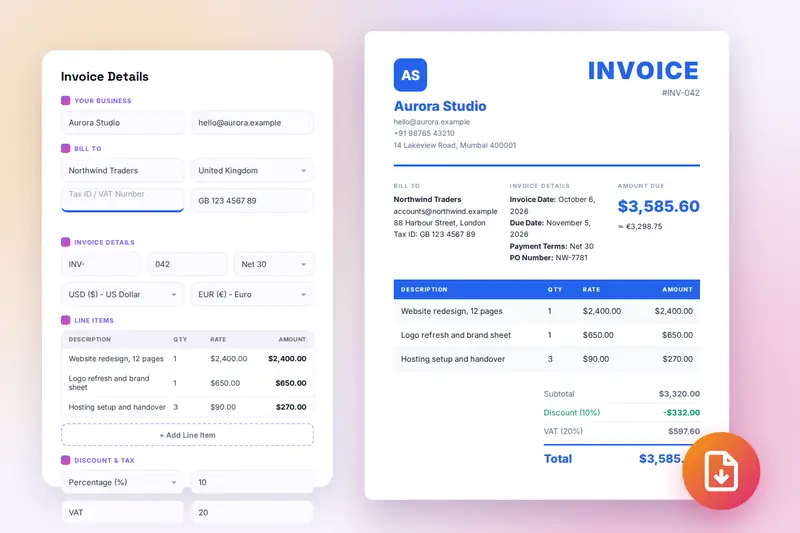
Table of Contents
Overview
InvoiceForge is a free invoice generator that runs entirely in your browser. The page is a form beside a live preview: you type your business and the client, add the line items, set the discount and the tax, and the finished invoice redraws on the right with every keystroke. One click downloads it as a PDF named after the invoice number, or opens the print dialog with only the invoice on the page.
It was built for people who bill in more than one currency or more than one country: a freelancer with clients in London, Berlin and Mumbai, a consultant whose invoices carry VAT one week and GST the next, a small exporter who wants the amount due shown in the client's currency too. Seventeen currencies, tax presets for twenty countries, percentage or fixed discounts and payment terms that set the due date cover most of that. Saved clients and saved business profiles make the second invoice to the same client a matter of a few clicks, and the history keeps the last fifty.
InvoiceForge works without an account. Your saved invoices, clients, business profiles and logo stay in this browser's storage, and the PDF is assembled on your computer, so no invoice data passes through a server. Once the page has loaded, the form keeps working if the connection drops.
Key Features
Live Preview
The invoice sits beside the form and redraws as you type, so what you download is exactly what you saw. On phones it moves above the form.
Four Templates
Modern, Classic, Minimal and Bold, switchable at any time while the content stays. Your logo goes at the top, or a coloured tile with your initials stands in for it.
Seventeen Currencies
USD, EUR, GBP, JPY, INR, CAD, AUD, CHF, CNY, HKD, SGD, SEK, NZD, MXN, BRL, AED and ZAR, each with the right symbol and decimals, plus an optional second currency under the amount due.
Tax Presets by Country
Choose the client's country and the tax name and standard rate are filled in: VAT, GST, MwSt, TVA, IVA, BTW or sales tax. Edit either field when your case differs.
Discounts and Terms
A percentage or fixed discount taken off before tax, and payment terms from Due on Receipt to Net 60 that set the due date, with custom terms when you need them. PO number optional.
Clients and Profiles
Save the client and your own business once; load either from a list next time. Up to 100 clients and 10 business profiles, logos included.
PDF or Print
An A4 PDF named after the invoice number, or the browser's print dialog with only the invoice on the page, both produced on your device.
History, Backup and Shortcuts
The last 50 saved invoices load back into the form. Export writes everything to one file and Import restores it. Ctrl+S, D, P, N, H, E and L cover the common actions.
How to Use
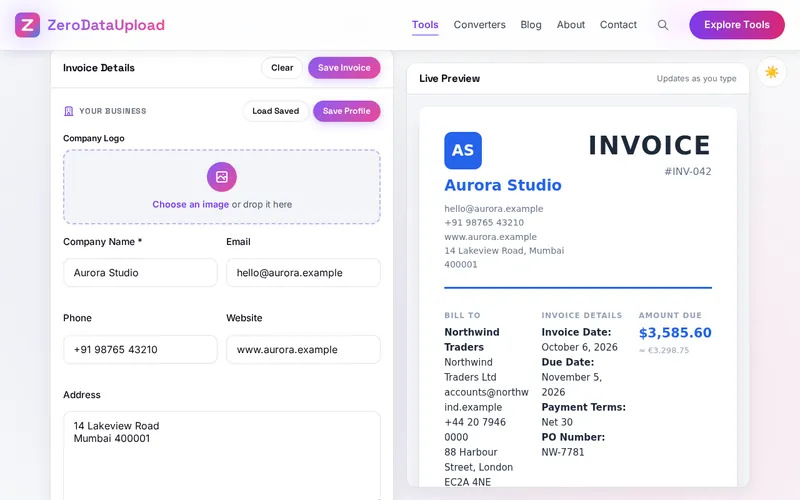
- Enter your business - Type your company name, email, phone, website and address, and drop your logo on the upload box. Click Save Profile so that Load Saved fills all of it in next time.
- Add the client - Enter the client's name, company, contact details and address, and choose the country, which fills the tax name and rate. Save Client keeps them for the next invoice.
- Set the invoice details - The number counts up from your last saved invoice behind the prefix you choose. Pick the payment terms, which set the due date, add a PO number if the client gave you one, and choose the currency and, if you like, a second one to show.
- Add the line items - Add Line Item (or Ctrl+N) adds a row; enter a description, quantity and rate. The amounts and the totals update as you type.
- Discount, tax and notes - Choose a percentage or fixed discount if there is one, check the tax name and rate, and write notes and payment instructions such as your bank details.
- Choose the template - Switch between Modern, Classic, Minimal and Bold in the toolbar and watch the preview change.
- Save and download - Save Invoice (Ctrl+S) adds it to the history. Download PDF (Ctrl+D) writes the file; Print (Ctrl+P) opens the print dialog. Export (Ctrl+E) now and then backs up everything.
Tax Presets, Discounts and Currencies
Most invoices come down to three choices, and InvoiceForge puts each one on the form:
- Tax - The client's country fills in the tax name and the standard rate: VAT 20% for the United Kingdom, GST 18% for India, MwSt 19% for Germany, TVA 20% for France, IVA 22% for Italy, GST 10% for Australia, and so on; the United States starts at 0% because sales tax varies by state, and Hong Kong has none. The presets are starting points. Reduced rates, provincial additions and zero-rated exports are entered by editing the two fields, and the invoice uses what the fields say. Put the client's VAT or tax number in the Tax ID field; under VAT in Europe and GST in India it decides whether the client can reclaim the tax.
- Discount - A percentage of the subtotal or a fixed amount, deducted before the tax is calculated and shown as its own line, so the client sees the full price, the reduction and the tax on the reduced figure.
- Currency - Chosen per invoice from seventeen. The choice sets the symbol, its position and the decimals; nothing is converted, so enter the amounts in the currency you are billing in. "Also Show In" prints an approximate figure in a second currency under the amount due, worked out from fixed reference rates built into the tool. It is a courtesy to the reader, not a rate of exchange, and the total stays in the main currency.
Payment terms set the due date from the invoice date (Due on Receipt, Net 15, 30, 45 or 60) and are printed on the invoice; Custom lets you type terms of your own and set the date by hand. The invoice number counts on from the last saved invoice, so numbers stay in sequence, which is what tax rules in most countries expect.
InvoiceForge or Bill Generator?
ZeroDataUpload has two invoice tools, and they suit different ways of working. InvoiceForge (this page) is one form beside a live preview, strongest when currencies and countries vary: 17 currencies, a second currency on the invoice, tax presets by country, discounts and payment terms, with clients and business profiles kept in pop-up lists. Bill Generator is organised in sections with a dashboard: invoices carry a status (draft, sent, paid, overdue), clients live in a client book with totals per client, and there are export-of-services fields for Indian businesses billing abroad. Both are free, both keep everything in your browser, and both download a PDF. If you want to track which invoices are paid, start with Bill Generator; if you want the invoice itself done quickly in any currency, start here.
Frequently Asked Questions
Privacy & Security
Invoices hold sensitive details: who your clients are, what you charge and where you are paid. InvoiceForge keeps all of it on your device. There is no upload and no server-side copy; the invoices, clients, profiles and logo live in your browser's storage and the PDF is built locally, so the only files that leave your computer are the ones you download or export yourself.
Apart from your invoices, clients, profiles, the invoice counter and your light or dark theme, InvoiceForge stores nothing. As on every page of ZeroDataUpload, the tool page carries Google AdSense ads and Google Analytics; the Privacy Policy and Cookie Policy explain what those services collect and how the cookie banner controls them. Your invoices are never part of it.
Ready to try InvoiceForge? It's free, private, and runs entirely in your browser.
Open InvoiceForge →Related

Last Updated: October 6, 2026