
Bill Generator
Make bills and invoices with your logo, tax and currency, keep your clients and history, and download a PDF, all in your browser
Guide reviewed 6 October 2026 by Milan Salvi. How we write and correct guides.
Open Bill Generator →Step-by-step help guide and questions and answers for this tool.
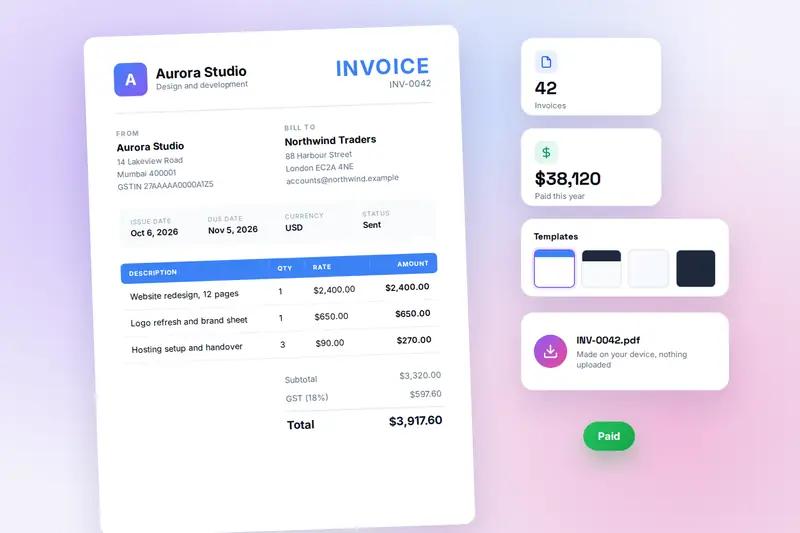
Table of Contents
Overview
Bill Generator makes bills and invoices for free, entirely in your browser. You enter your business details once, choose a client, add the line items and the tax, and the invoice takes shape in a live preview as you type. One click downloads it as a PDF or a PNG, or opens the print dialog. Saved invoices are listed with their status, clients are kept in a client book, and a single backup file holds everything.
It was built for the people who need a proper invoice without a subscription: freelancers and consultants billing a handful of clients a month, small shops and workshops writing bills for repairs and orders, tutors and trainers invoicing monthly, and Indian businesses invoicing clients abroad who need purpose codes and a GST declaration on the document. Four templates, eight currencies and GST, VAT or sales tax cover most of them.
There is no account and no server. Invoices, clients, settings and your logo are stored in your browser on your own device, and the PDF is built there too. Nothing is uploaded, which also means the tool keeps working without an internet connection once the page has loaded.
Key Features
Live Preview
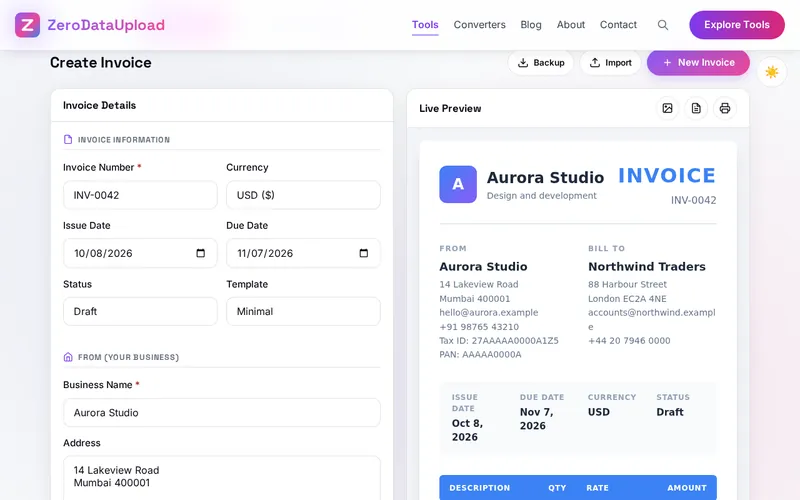
The finished invoice sits beside the form and redraws with every keystroke, so what you download is exactly what you saw.
Four Templates
Minimal, Corporate, Creative and Dark, switchable on any invoice at any time. Your logo, tagline, accent colour and footer message apply to all of them.
Tax Done Right
GST, VAT or sales tax at any rate, labelled correctly on the invoice, with a default rate for new invoices and fields for tax ID, GST number and PAN.
Eight Currencies
US dollar, euro, pound, rupee, Australian and Canadian dollars, yen and yuan, chosen per invoice and formatted the way their users expect.
Clients and History
A client book with one-click invoicing, and a searchable history with draft, sent, paid and overdue status, where invoices can be edited, duplicated, downloaded or deleted.
Export of Services
Optional purpose code, service category and GST exemption declaration for Indian businesses invoicing clients abroad, printed on the invoice.
PDF, PNG or Print
An A4 PDF named after the invoice number, a PNG for messaging apps, or the browser's print dialog, all produced on your device.
Backup and Shortcuts
One file holds every invoice, client and setting for restoring or moving to another computer. Ctrl+N, S, P, L and D cover the common actions.
How to Use
- Set up your business - Open Settings and enter your business name, address, email, phone and tax numbers. Add your logo, pick an accent colour and a tagline, and set the invoice prefix, default currency, tax rate and template. Every new invoice starts with these.
- Start a new invoice - Click New Invoice (or press Ctrl+N). The number comes from your prefix and counter, the issue date is today and the due date is thirty days on. Change any of them, and choose the currency, status and template for this invoice.
- Choose or add the client - Pick a saved client from the drop-down, or type the client's name, address, email and phone. Save Client adds them to the client book for next time.
- Add the line items - Each line has a description, a quantity and a rate. Add Line Item (or Ctrl+L) adds a row; the cross removes one. The amounts, subtotal and total update as you type.
- Add the tax - Under the subtotal choose GST, VAT or Sales Tax and type the rate. The tax line appears on the invoice with the right label, for example "GST (18%)".
- Notes, terms and export fields - Write notes and payment terms (bank details go here, one per line). For a client abroad, tick Foreign Remittance to add the purpose code, service category and GST declaration.
- Save and download - Save Invoice (or Ctrl+S) adds it to the history. The buttons above the preview download the PDF (or Ctrl+P) or the PNG, or open the print dialog. Mark it Sent, Paid or Overdue later from Invoice History.
Tax, Currencies and Export of Services
Three decisions shape most invoices, and the tool keeps each of them simple:
- Tax - One tax line per invoice: GST, VAT or sales tax at the rate you type, shown separately from the subtotal so a client who can reclaim it sees the amount on its own. Put your registration number in the Tax ID or GST Number field; under GST in India and VAT in Europe the client needs it to reclaim the tax. For work taxed at mixed rates, split it across invoices or explain the split in the notes.
- Currency - Chosen per invoice from eight: USD, EUR, GBP, INR, AUD, CAD, JPY and CNY. The choice sets the symbol and the number format on the invoice; nothing is converted, so enter the amounts in the currency you are billing in. The dashboard's revenue total uses the default currency's format.
- Export of services - An Indian business paid from abroad is asked by its bank for a purpose code (P0801 software services, P0802 IT services, P0803 business services, P0804 consulting, P0805 other) and by its accountant for the GST position, usually an exemption under a Letter of Undertaking. The Foreign Remittance section prints both on the invoice; the wording of the declaration is yours, so check it with your accountant.
Invoice numbers are generated from a prefix and a counter and must be unique: tax rules in most countries require sequential numbering without duplicates, and the tool refuses a number that already exists. Change the prefix or the next number in Settings when you start a new year or a new numbering scheme.
Frequently Asked Questions
Privacy & Security
An invoice carries your client list, your prices and your bank details. Bill Generator has no upload step and no server-side storage: every invoice, client, setting and logo is written to your browser's storage on your own device, the PDF is built there as well, and the only copy that ever leaves it is the file you choose to download or back up.
The tool keeps your invoices, clients, settings and your theme choice in the browser, and nothing else. Like every page on ZeroDataUpload, the tool page shows ads through Google AdSense and uses Google Analytics; the Privacy Policy and Cookie Policy explain what those services collect and how the cookie banner controls them. Your invoices are never part of it.
Ready to try Bill Generator? It's free, private, and runs entirely in your browser.
Open Bill Generator →Related

Last Updated: October 6, 2026