
FreelanceIQ: Freelance Time Tracker and Hourly Rate Calculator
See what an hour of your freelance work really pays, which clients are worth the time and what to charge next, from the hours you log, worked out in your browser
Guide reviewed 9 November 2026 by Milan Salvi. How we write and correct guides.
Open FreelanceIQ →Step-by-step help guide and questions and answers for this tool.
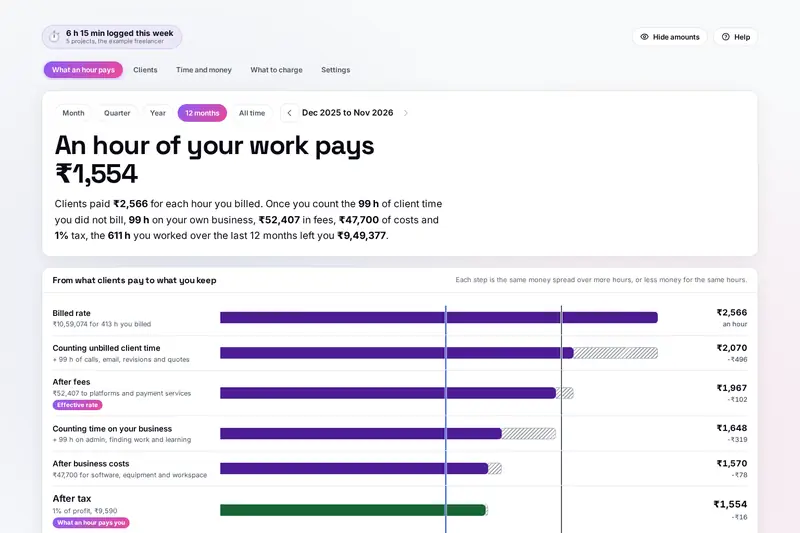
Table of Contents
Overview
The rate on an invoice is not what an hour of freelance work pays. Calls, email, revisions and quotes take time nobody pays for, a marketplace keeps its share, the admin and the hunt for the next job fill whole days, and costs and tax come off the rest. FreelanceIQ adds all of that up from the hours you actually log, and shows the staircase from what clients pay down to what an hour of your work leaves you.
You log time with a timer, a quick entry such as 2h30 or 9-5, or an export from Toggl Track, Clockify or Harvest, and say how each project is charged: by the hour, a fixed price, a monthly retainer or what each job paid, in any currency. From there it shows which clients are worth the time, the job that ran over its plan, money overdue or not invoiced, the rate your take-home needs and a fixed price that still pays your rate if the next job goes the way your last ones did.
Everything is worked out by your own browser. Your clients and earnings are never uploaded, there is no account, and your records stay in this browser on your device.
Key Features
Timer and Quick Entry
A timer that keeps running when you close the page, and entries typed as 2h30, 2.5 or 9:00-11:30.
Toggl, Clockify and Harvest
Their CSV and Excel exports read as they are, with the billable column, the amounts and their currency.
Every Way of Charging
Hourly work, fixed prices, retainers and payments you enter, side by side, in 19 currencies.
The Rate Staircase
From the billed rate to what an hour pays after unbilled time, fees, business time, costs and tax.
Clients Worth the Time
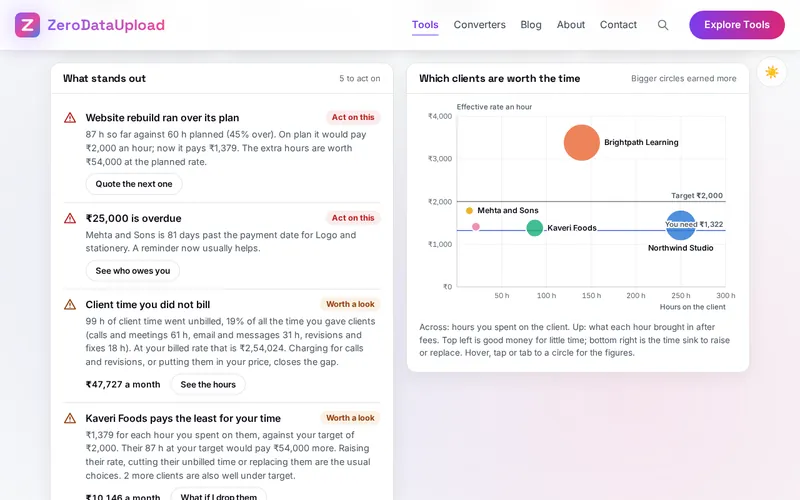
A map and a table of every client's hours, effective rate, share of income and days to pay.
What Stands Out
Overruns, unbilled time, low-paying clients, one big client, overdue money, fees and long weeks.
The Rate You Need
Worked back from your take-home, with tax, costs, fees and your real share of billed hours.
Quotes From Your History
A fixed price that allows for your usual overruns and unbilled time, rounded to a figure that reads well.
How to Use
- Add your projects - Under Clients, add each project with its client, how you charge, the amount, the currency, the hours planned and the fees taken.
- Log your hours - Start the timer, type an entry such as 2h30 or 9:00-11:30, and say what the time was and whether it was billed.
- Or import a time report - Open a CSV or Excel export from Toggl Track, Clockify or Harvest and add each project in it to one of yours or a new one.
- Add invoices if you like - Under Time and money, add invoices and tick them when paid to see what is overdue and how long clients take.
- Read the staircase - Set your target rate, costs, tax share and business hours, then see what an hour pays and what stands out.
- Decide what to charge - Work out the rate your take-home needs, quote a fixed price from your history, or try a price rise.
How the Figures Are Worked Out
- Earnings - Hourly work counts your rate times the billed hours in the month they were worked; a fixed price is spread over every hour put into the job; a retainer counts its fee for each month it runs, the current month up to today; "I enter what I earn" counts the invoices on their dates. If you invoiced more than the rate or price says, the invoiced amount counts. A project paid in another currency is turned into yours at its exchange rate, filled in for 15 currencies from the European Central Bank's rates of 6 November 2026.
- The staircase - The billed rate is earnings per billed hour. Counting unbilled client time spreads them over every client hour; after fees gives the effective rate; counting your own business time spreads them over every hour you worked (your logged hours, or your estimate a week until you log any); then your business costs a month and the share of profit you pay in tax come off. The last step is what an hour of your work pays you.
- The checks - Your effective rate against your target, unbilled client time over 15%, a fixed job more than 10% over its plan, a client under 75% of your target, one client paying half or more of your income (a common rule of thumb is to keep any one client under half), money overdue after the client's payment terms, fees over 6%, weeks of 45 hours or more and income swinging by 30% or more.
- What to charge - The rate you need adds tax, costs and fees to your take-home and divides by your billed hours in a year: 52 weeks less weeks off, times hours a week, times your share of billed hours. A fixed-price quote adds your usual overrun and unbilled time to the hours you expect, prices them at your rate and adds the fees.
- Tax - FreelanceIQ uses the share of profit you type, because tax rules differ by country and person. In India most freelancers can use presumptive tax, where half of what clients pay counts as profit; PayPulse works that tax out for tax year 2026-27.
- Checked before publishing - We compared the tool with a reference written separately from these rules: 4,806 typed amounts, 4,464 typed durations, 700 made-up freelancers over 4,900 periods with nearly 28,000 checks, 600 rates and 600 quotes, and 84 time reports in the layouts of Toggl Track, Clockify, Harvest and own sheets, as CSV and Excel. FreelanceIQ is a calculator for planning, not tax or business advice.
Frequently Asked Questions
The questions people ask most are answered on the tool page, just below the tool. The full list of 40 questions, from the ways of charging and other currencies to the timer, imports, the staircase, what to charge and your data, is in the FreelanceIQ FAQ, and the help guide walks through every part of the tool step by step.
Privacy & Security
Client names, what they pay you and how long they take to pay are private business numbers. FreelanceIQ has no upload step, no account and no server-side storage: everything is worked out by your browser, a time report you import is read on your computer, and your records are kept in your browser's storage until you choose Delete everything.
The tool loads nothing from outside the site, and the page title never shows a client, a project or an amount. The Hide amounts button blurs every number when someone can see your screen. Like every page on ZeroDataUpload, the tool page shows ads through Google AdSense and uses Google Analytics; the Privacy Policy and Cookie Policy explain what those services collect and how the cookie banner controls them. Your figures are never part of it.
Ready to see what an hour of your work really pays? It's free, private, and runs entirely in your browser.
Open FreelanceIQ →Related

Last Updated: November 3, 2026