
MINUBOT
Write meeting minutes from a template, track decisions and action items across meetings, and export to PDF, Word or Markdown, all in your browser
Guide reviewed 6 October 2026 by Milan Salvi. How we write and correct guides.
Open MINUBOT →Step-by-step help guide and questions and answers for this tool.
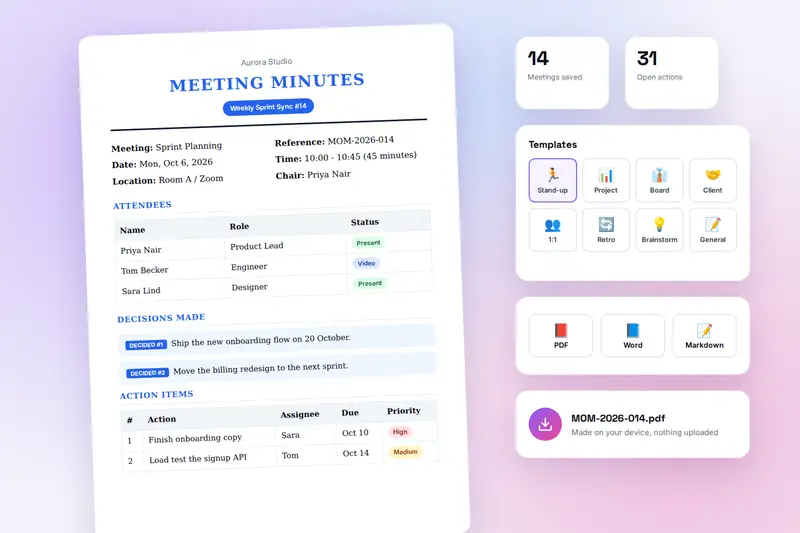
Table of Contents
Overview
MINUBOT is a free meeting minutes generator that runs entirely in your browser. You pick a template for the kind of meeting, enter the attendees, agenda, discussion points, decisions, motions and action items, and the minutes take shape in a live preview as you type. One click exports them as a PDF, a Word file, a PNG or Markdown, and another opens an email draft to the attendees. Saved meetings go into an archive, and a dashboard shows the action items of every meeting together.
It was built for the person who has to produce the minutes: the secretary of a club or society, the scrum master writing up a retrospective, the consultant sending a client call summary, the team lead keeping track of who promised what. Formal bodies get motions with votes, confidentiality banners, numbered references and amendments; informal teams get a stand-up or retrospective agenda already filled in and an action list they can actually follow up.
There is no account and no server. Meetings, the archive, your settings and your logo are stored in your browser on your own device, and every export is made there. Nothing is uploaded, which also means the tool keeps working in a meeting room with no connection once the page has loaded.
Key Features
Eight Templates
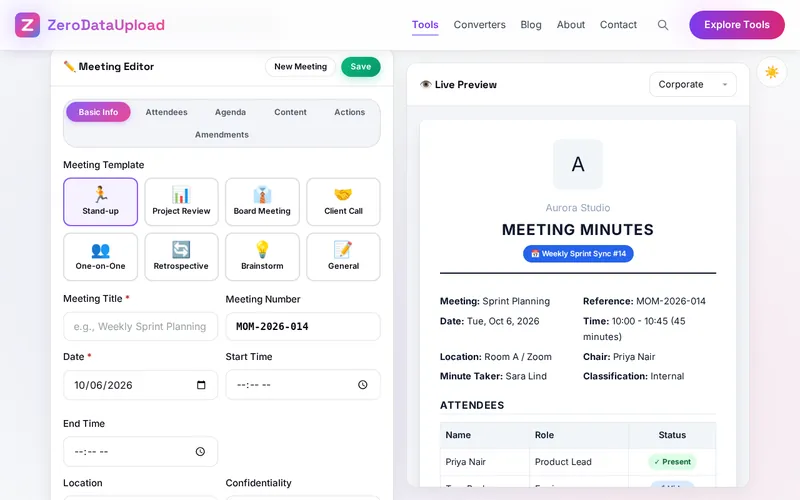
Stand-up, Project Review, Board Meeting, Client Call, One-on-One, Retrospective, Brainstorm and General, each with the usual agenda items and timings already filled in.
Everything Minutes Need
Attendees with status, a timed agenda, discussion points by speaker, decisions by category, motions with proposer, seconder and votes, follow-ups, attachments and amendments.
Action Items and Dashboard
Owner, due date, priority and status on every action, a previous-meeting reference that brings open actions forward, and a dashboard across all saved meetings with filters.
Live Preview in Five Styles
Corporate, Minimal, Legal, Creative or Government, with your logo, company name and two brand colours. What you see is what the exports contain.
Numbering, Series and Confidentiality
Reference numbers in your own format, series names with running numbers, and Confidential or Strictly Confidential banners printed on the document.
Archive and Auto-save
Saved meetings are searchable by title, number or attendee and can be reopened for editing. Auto-save keeps the draft you are working on every 30 seconds, minute or five minutes.
Export to Every Format
PDF through the print dialog, an editable Word file, a PNG image and Markdown for wikis, plus an email draft to the attendees in your own email program.
Keyboard Shortcuts
Ctrl+S saves, Ctrl+N starts a new meeting, Ctrl+E opens the export window and Escape closes any window.
How to Use
- Set up once - Open Settings and add your company name and logo, choose the two brand colours and the document style, pick the meeting number format and the defaults for new meetings.
- Choose a template and the basics - On the Basic Info tab pick the kind of meeting; the agenda fills in. Enter the title, date, start and end time, location, chair and minute taker, and set the confidentiality level. A series name and number tie recurring meetings together.
- Add the attendees - Name, role, email and status for each person, including apologies and video callers.
- Shape the agenda - Edit the template's items or add your own with a time allocation and a presenter. Items are numbered and can be referenced from discussion points.
- Record the meeting - On the Content tab capture discussion points, decisions, motions with votes, follow-ups and the files shared. On the Actions tab assign each action to one owner with a due date and a priority.
- Check the preview and save - The preview shows the finished minutes; switch styles with the menu above it. Save (or Ctrl+S) adds the meeting to the Archive.
- Export and distribute - Export (or Ctrl+E) offers PDF, Word, PNG and Markdown, and opens an email draft to the attendees. The Dashboard shows every action item from every saved meeting.
The Eight Templates
A template is a ready agenda for a kind of meeting; everything else in the minutes is the same. Pick the closest one and edit the items:
- Stand-up - What was done yesterday, what is planned today, any blockers. Five minutes each.
- Project Review - Status update, milestone review, risks, resources, next steps.
- Board Meeting - Call to order, approval of previous minutes, financial report, committee reports, old and new business, announcements, adjournment, with the chair, secretary and treasurer as presenters. Use Motions for the votes.
- Client Call - Introductions, project overview, deliverables review, client feedback, next steps and timeline.
- One-on-One - Check-in, goals progress, challenges and support, career development, feedback.
- Retrospective - What went well, what could be improved, what we commit to, action items.
- Brainstorm - Problem statement, idea generation, clustering, voting and prioritisation, next steps.
- General - An empty agenda for anything else.
Good minutes record decisions and actions rather than everything that was said. Write each decision in one sentence, give every action one named owner and a date, and send the minutes the same day; the tool's structure nudges you towards all three. When minutes that have been distributed need a correction, record it on the Amendments tab rather than editing the original, so the record stays honest.
Frequently Asked Questions
Privacy & Security
Minutes hold names, decisions and sometimes confidential business. MINUBOT has no upload step and no server-side storage: every meeting, setting and logo is written to your browser's storage on your own device, every export is made there, and the only copies that leave it are the files you choose to download or send.
The tool keeps your meetings, settings and your theme choice in the browser, and nothing else. Like every page on ZeroDataUpload, the tool page shows ads through Google AdSense and uses Google Analytics; the Privacy Policy and Cookie Policy explain what those services collect and how the cookie banner controls them. Your minutes are never part of it.
Ready to try MINUBOT? It's free, private, and runs entirely in your browser.
Open MINUBOT →Related

Last Updated: October 6, 2026