
SocialSizer
Resize one picture or a whole batch for Instagram, Facebook, X, LinkedIn, YouTube, Pinterest and TikTok, with safe-zone guides and every size in one ZIP, without the pictures leaving your browser
Guide reviewed 6 October 2026 by Milan Salvi. How we write and correct guides.
Open SocialSizer →Step-by-step help guide and questions and answers for this tool.
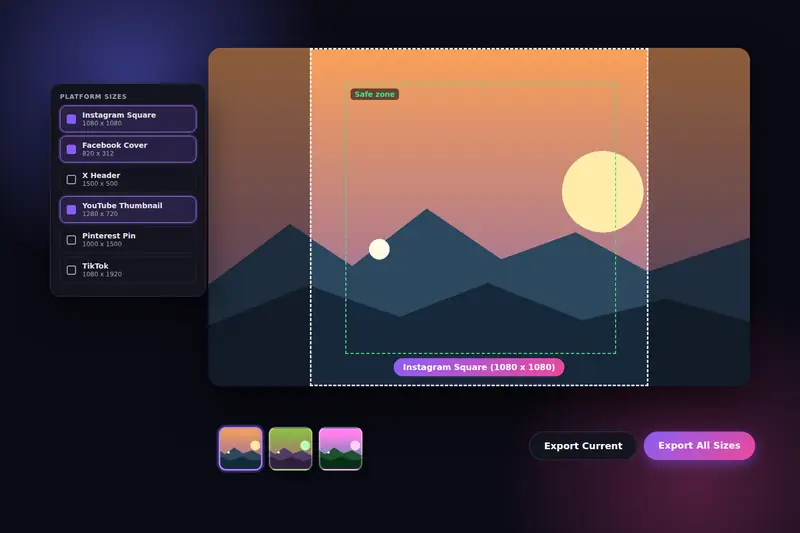
Table of Contents
Overview
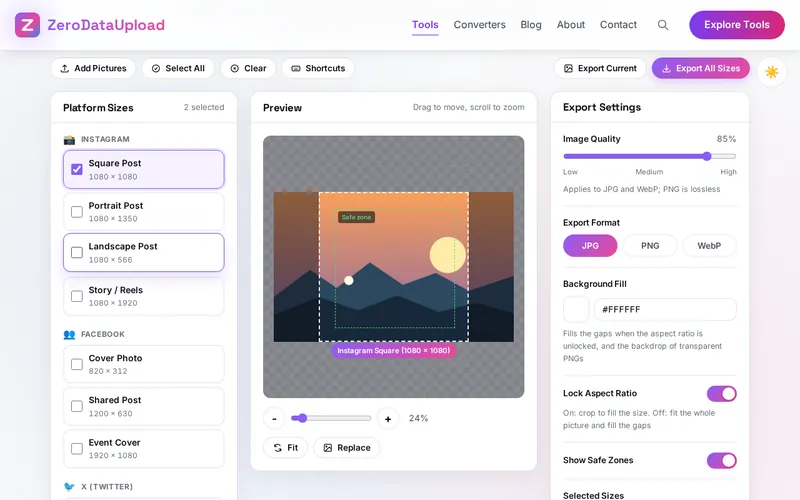
SocialSizer is a free social media image resizer that runs entirely in your browser. The page is three panels: the platform sizes on the left, the preview in the middle, the export settings on the right. You drop a picture, or several, on the preview, tick the sizes you need, check the crop against the safe-zone frame, choose a format and a quality, and one click makes every size for every picture. A single result downloads as a file; more than one comes down as one ZIP.
It was built for the daily chore of posting the same picture in five places, each with its own frame: a shop announcing a sale on Instagram, Facebook and Pinterest; a channel that needs a thumbnail and a banner; a professional refreshing a LinkedIn and an X header on the same morning. Seventeen current sizes cover the big platforms, custom sizes cover the rest, and the tool never stretches a picture: it crops to fill from the centre, or fits the whole picture inside the frame with a colour of your choice around it.
There is no account and no server. The pictures are read by your browser, drawn at each size on your own device and saved from there; the only things kept between visits are your export settings and the last five sizes you used, in your browser. Nothing is uploaded, which also means the tool keeps working without an internet connection once the page has loaded.
Key Features
Seventeen Platform Sizes
Instagram square, portrait, landscape and story; Facebook cover, post and event; X header and post; LinkedIn banner, company banner and post; YouTube thumbnail and channel banner; Pinterest pin and square pin; TikTok.
Custom and Recent Sizes
Any width and height up to 8000 pixels, added in a second and remembered; the last five sizes you used wait a click away.
Safe-Zone Guides
A dashed frame shows what the selected size keeps; an inner green frame shows where profile pictures, buttons and captions may cover the edges.
Crop or Fit, Never Squash
Lock Aspect Ratio crops to fill from the centre; unlocking it fits the whole picture and fills the gaps in your background colour.
JPG, PNG or WebP
Choose the format and set the quality once; it applies to every size and every picture in the batch.
Batches in One ZIP
Add many pictures, tick many sizes, export once: every file is packed into a single ZIP named after the first picture, with readable file names inside.
Export Current
Save the open picture at its own size in the chosen format and quality: a quick PNG-to-JPG conversion or a file-size cut without changing the frame.
Zoom, Pan and Shortcuts
Scroll or slide to zoom, drag to move, R to fit, Ctrl+A to select every size, Ctrl+E to export; the preview works with a finger on phones.
How to Use
- Add your pictures - Drop one or more JPG, PNG, WebP, GIF or BMP files on the preview panel, click Add Pictures, or press Ctrl+O. The first opens in the preview; the rest appear as thumbnails beneath it.
- Tick the sizes - Choose from the seventeen platform sizes on the left, type a custom width and height, or pick a recent size. Select All ticks everything; Clear unticks it.
- Check the safe zone - The dashed frame shows what the first selected size keeps and the green frame the part that stays clear of overlays. Zoom with the slider or the mouse wheel and drag to look around; Fit brings the picture back.
- Crop or fit - Leave Lock Aspect Ratio on to crop to fill from the centre, or switch it off to keep the whole picture with the gaps filled in the background colour.
- Set format and quality - JPG for photos, PNG for graphics and transparency, WebP for the smallest files; 85 percent quality is a good default.
- Export - Export All Sizes (Ctrl+E) makes every selected size for every picture, as one file or one ZIP. Export Current (Ctrl+S) saves the open picture at its own size in the chosen format.
Platform Sizes, Crops and Safe Zones
Three things decide whether a picture looks right on a platform, and the tool handles each of them:
- The frame - Each platform shows images in fixed proportions: 1:1 and 4:5 for Instagram posts, 9:16 for stories and TikTok, 1.91:1 for Facebook and LinkedIn link images, 16:9 for X posts and YouTube thumbnails, 3:1 for an X header, 4:1 for a LinkedIn banner, 2:3 for a Pinterest pin. A picture in the wrong proportions is cropped or padded by the platform itself, usually through the subject. The seventeen presets are those frames at the sizes the platforms recommend.
- The crop - With Lock Aspect Ratio on, the tool scales the picture to fill the frame and cuts the overflow equally from both sides, so nothing is stretched. The dashed frame on the preview shows exactly what survives for the first selected size. For a picture that must be kept whole (a poster, a product on white), switch the lock off and the picture is fitted inside the frame with the gaps in your background colour.
- The overlays - Platforms put their own elements on top of your picture: a round profile photo on the lower left of a Facebook, X or LinkedIn banner, the caption and buttons over the lower third and right edge of a story or a TikTok, the duration badge on a YouTube thumbnail, and on a YouTube channel banner only a strip in the middle shows on every device. The green inner frame marks a 10 percent margin inside the crop; faces, logos and text that stay inside it are safe on every platform listed.
The sizes are the platforms' published or recommended figures as of October 2026. When a platform changes a frame, type the new figures as a custom size; the tool remembers it with your other recent sizes.
Frequently Asked Questions
The questions people ask most about SocialSizer are answered on the tool page, just below the tool. The full list of 31 questions, from storage and privacy to troubleshooting, is in the SocialSizer FAQ, and the help guide walks through every feature step by step.
Privacy & Security
Photos of your family, your products or your clients are not things to hand to a server for a resize. SocialSizer has no upload step and no server-side storage: the pictures are read by your browser, drawn at each size on your own device, and the only copy that ever leaves it is the file or the ZIP you choose to download.
The tool keeps its export settings, your recent sizes and your theme choice in the browser, and nothing else. Like every page on ZeroDataUpload, the tool page shows ads through Google AdSense and uses Google Analytics; the Privacy Policy and Cookie Policy explain what those services collect and how the cookie banner controls them. Your pictures are never part of it.
Ready to try SocialSizer? It's free, private, and runs entirely in your browser.
Open SocialSizer →Related

Last Updated: October 6, 2026