
UltraCompress Pro
Compress PNG, JPEG, WebP, AVIF and HEIF images up to 90% smaller, in batches, without uploading a single file
Guide reviewed 5 October 2026 by Milan Salvi. How we write and correct guides.
Open UltraCompress Pro →Step-by-step help guide and questions and answers for this tool.
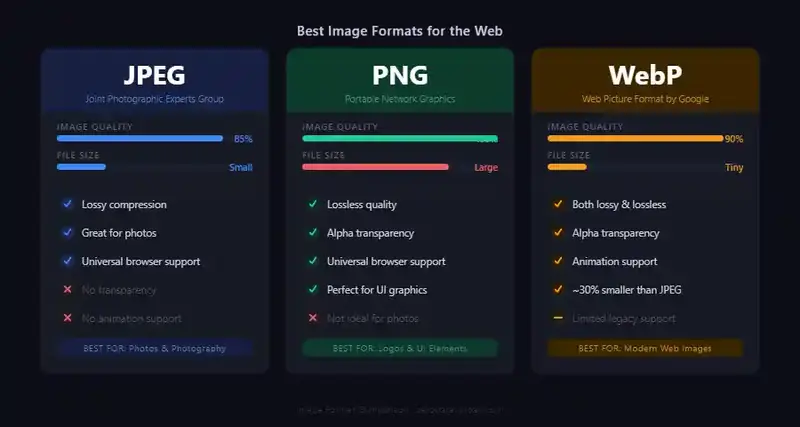
Table of Contents
Overview
UltraCompress Pro is a free image compressor that runs entirely in your browser. Drop in photos, screenshots or graphics in PNG, JPEG, WebP, AVIF or HEIF form, pick a quality level and an output format, and download smaller files that look the same to the eye. Photos typically shrink by 50 to 80 percent, graphics by 20 to 50 percent, and converting to a modern format such as WebP can take as much as 90 percent off the original size.
The tool was built for the everyday jobs that make people reach for an online compressor: shrinking product photos before they go on a website, getting a folder of holiday pictures under an email attachment limit, preparing images for a blog post so the page loads quickly, or reducing screenshots for documentation. Because the work happens on your own computer, there is no queue, no file size cap set by a server, and no copy of your pictures left behind anywhere.
Beyond plain compression, UltraCompress Pro can resize images down to a maximum width, adjust brightness, contrast, saturation and hue, show the image's embedded camera data, and compare the original and compressed versions side by side before you download. Batches of any size are processed in parallel and can be saved as a single ZIP file.
Key Features
Five Input Formats
Accepts PNG, JPEG, WebP, AVIF and HEIF files. Drag and drop them onto the upload zone or pick them with the file chooser; there is no limit on the number or size of files beyond your computer's memory.
Quality Presets and Slider
Six one-click presets from Ultra (95%) to Tiny (10%), or a slider for any value from 1 to 100. The preview shows the new size and the percentage saved for each image.
Output Format Conversion
Save as WebP for the smallest web images, JPEG for photographs, PNG where transparency matters, or let Auto choose the best format for each image.
Downscaling
Set a maximum width from 256 to 4096 pixels. Larger images are scaled down to fit; smaller images are left at their original dimensions, never enlarged.
Colour Adjustments
Brightness, contrast, saturation and hue sliders apply to the whole batch, with a live preview and an edit window for fine-tuning individual images.
Before and After Comparison
Open any processed image in the comparison view to check the compressed result against the original at full size before you download it.
Camera Data Viewer
Read the metadata stored in a photo (camera model, exposure, date and more) and export it, so you know what the file carries before you share it.
Batch Processing and ZIP Download
Hundreds of images are compressed in parallel using every processor core your device has. Download them one by one or all at once as a ZIP archive.
How to Use
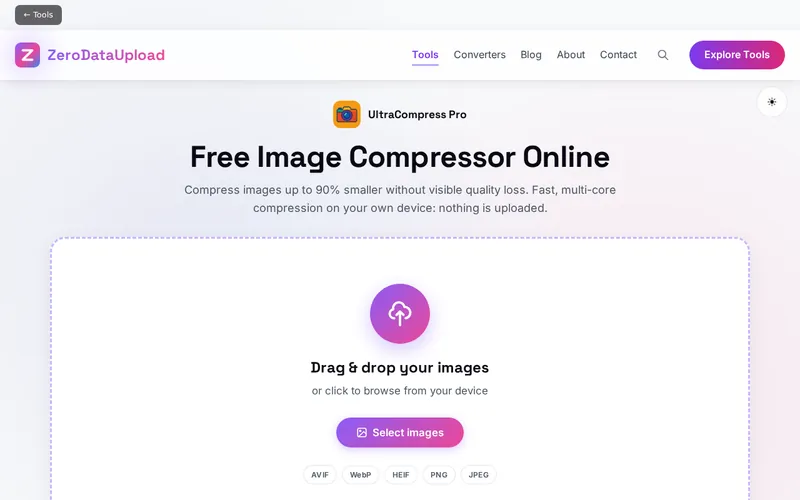
- Add your images - Click Select Files or drag your pictures onto the upload zone. PNG, JPEG, WebP, AVIF and HEIF files are accepted, in any number.
- Pick a quality level - Use a preset (Ultra, High, Good, Medium, Low or Tiny) or move the slider. For photos on a website, 70 to 85 percent is a good balance of size and quality.
- Choose the output format - WebP gives the smallest files for web use, JPEG suits photographs, PNG keeps transparency, and Auto lets the tool decide per image.
- Set the advanced options (optional) - Choose a maximum width to downscale large images, and adjust brightness, contrast, saturation or hue if the pictures need it.
- Start the compression - Click Start Compression. A progress panel shows how many images are done and how much space has been saved so far.
- Check the results - Each processed image shows its old and new size. Open the comparison view to see the original and the compressed version side by side, or the edit window to adjust one image on its own.
- Download - Save images individually, or click the ZIP download to get the whole batch in one file. Clear All removes everything from the page when you are done.
Choosing a Quality Level
Compression quality is a trade-off between file size and visual detail. The presets map to the settings most people need:
- Ultra (95%) - Almost no visible change; for print-ready photos and archives where size matters less than fidelity.
- High (85%) - The usual choice for professional photography and portfolio sites.
- Good (70%) - Recommended for most web images: a large saving with no change a visitor would notice.
- Medium (50%) - The default. Suits general sharing, email and social media.
- Low (30%) - For thumbnails and previews where small files matter more than detail.
- Tiny (10%) - Maximum compression; expect visible artefacts, useful for placeholders only.
Format matters as much as the quality number. JPEG and WebP are lossy: they discard detail the eye is unlikely to miss, which is why they shrink photographs so well. PNG is lossless: it keeps every pixel, so it is the right choice for logos, screenshots with text, and anything with transparency, at the cost of larger files. WebP supports both lossy and lossless modes and transparency, and is about 30 percent smaller than JPEG at the same visual quality, which is why it is the default output here.
Frequently Asked Questions
Privacy & Security
Every step, from reading the file to writing the compressed copy, happens in your browser's memory. UltraCompress Pro has no upload step and no server-side processing, so your photos cannot be stored, logged or seen by anyone else. Close the tab and nothing remains.
The only settings the tool keeps are your theme choice and the site-wide cookie preference, stored in your browser. Your images, their metadata and the compression results are never written to storage. Like every page on ZeroDataUpload, the tool page shows ads through Google AdSense and uses Google Analytics; the Privacy Policy and Cookie Policy explain what those services collect.
Ready to try UltraCompress Pro? It's free, private, and runs entirely in your browser.
Open UltraCompress Pro →Related

Last Updated: October 5, 2026