
EmailSignature
Design a professional email signature with your photo, logo, social links and a call-to-action button, check it in Gmail, Outlook and Apple Mail, and copy it into your mail program in one click, without your details leaving your browser
Guide reviewed 6 October 2026 by Milan Salvi. How we write and correct guides.
Open EmailSignature →Step-by-step help guide and questions and answers for this tool.
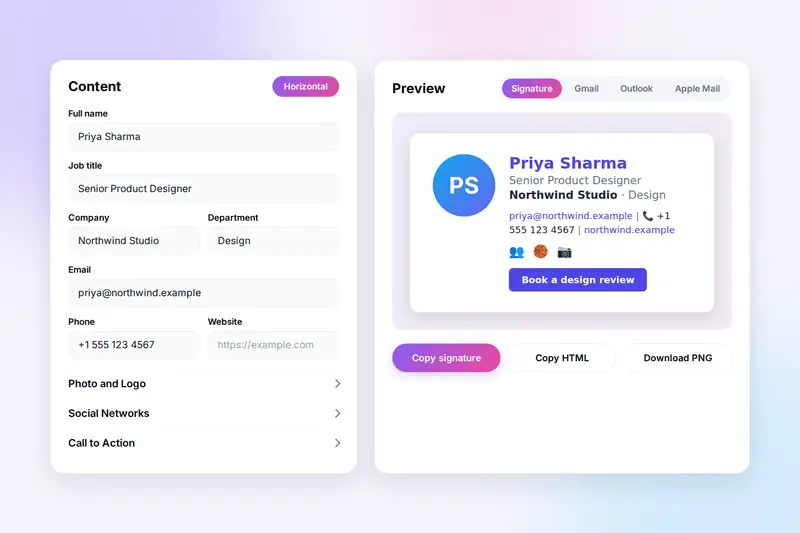
Table of Contents
Overview
EmailSignature is a free email signature generator that runs entirely in your browser. You fill in your name, title, company and contact details, add a photo and a logo, pick the social networks you want to show, and switch on any extras you need: a banner with a link, a call-to-action button in your brand colour, a meeting link for your booking page, or the legal disclaimer your organisation asks for. Four layouts, four colours, seven fonts and three text sizes cover most brand guides, and the preview on the right follows every keystroke. Tabs show the signature under a short message in Gmail, Outlook and Apple Mail mock-ups, so you can judge it at the end of a real email before you install it.
When it looks right, one click copies the formatted signature to the clipboard, ready to paste into the signature box of Gmail, Outlook, Apple Mail or Thunderbird; the page explains where that box is in each program. Copy HTML gives the code for systems that ask for it, and Download PNG an image for the rare place that accepts only a picture. Undo and Redo keep fifty steps, the draft is saved as you type and is back when you return, and Save signature keeps named versions that Export can carry to another device.
The signature is built the way mail programs expect: a small table with every style written inline, fonts that every computer has, and images that are either embedded or loaded from an address you give. That last point matters: Gmail removes embedded images, so each upload box has a field for a hosted address underneath it. There is no account and no server. Your details, your photo and your saved signatures live in your browser's storage on your own device, and the only copies that leave it are the ones you paste, download or export yourself.
Key Features
Everything a Signature Needs
Name, title, company and department; email, phone, mobile, fax, website and address; a photo in three shapes and a logo at the height you choose.
Images Embedded or Hosted
Upload a file and it is shrunk and embedded, or paste a hosted address, which every mail program shows, Gmail included. The hosted address wins when both are given.
Twelve Social Networks
LinkedIn, X, Facebook, Instagram, YouTube, GitHub, Dribbble, Behance, Pinterest, TikTok, WhatsApp and Telegram, each as a symbol that links to your profile and needs no hosting.
Button, Meeting Link, Banner, Disclaimer
A call-to-action button in your primary colour, a text link to your booking page, a banner with a link, and small grey legal text, each behind its own switch.
Four Layouts, Your Colours
Horizontal, Vertical, Compact and Modern; primary, secondary, text and link colours; seven safe fonts; name, title and contact sizes on sliders.
Gmail, Outlook and Apple Mail Previews
Tabs place the signature under a short message in a mock-up of each program, in that program's body font, so you see it where it will live.
Copy, Code or Picture
Copy signature for the signature box, Copy HTML for systems that want code, Download PNG at twice the size for places that take only an image.
Undo, Drafts and Saved Signatures
Fifty steps of undo and redo, a draft that is saved as you type and restored on return, named saved signatures, and Export and Import to move them between devices.
How to Use
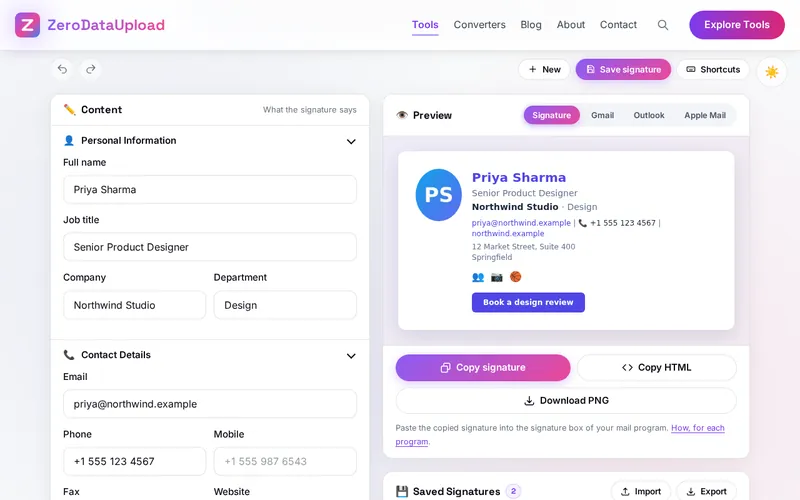
- Fill in who you are - Type your name, title, company and department, then the contact details you want recipients to have. Blank fields are left out.
- Add a photo and a logo - Drop files on the upload boxes to embed them, or paste hosted addresses in the fields beneath, which is what Gmail needs. Choose the photo's shape and size.
- Pick networks and extras - Click the social networks you use and paste your profile addresses. Switch on a banner, a button, a meeting link or a disclaimer as needed.
- Choose a layout and colours - In the Design card pick a layout, set the four colours to your brand, and choose a font and the text sizes. Undo steps back through any experiment.
- Check the previews - Open the Gmail, Outlook and Apple Mail tabs to see the signature at the end of a sample email in each program.
- Copy, install and save - Click Copy signature and paste it into your mail program's signature box; the tool page lists the steps for Gmail, Outlook, Apple Mail, iPhone and Thunderbird. Save signature keeps it for next time.
What Makes a Signature Work Everywhere
Mail programs are not web browsers: each keeps a different, smaller set of layout rules, and a signature that looks right in yours can fall apart in your recipient's. Three habits avoid nearly all of it, and the tool follows them for you:
- Tables and inline styles - Mail programs ignore most stylesheets, and Outlook for Windows ignores nearly all. The dependable structure is a table with the styling written on each cell and each piece of text, which is how every layout here is built. That is why the photo stays beside the text in Outlook rather than dropping underneath.
- Images that can be found - An image is either embedded in the email or fetched from an address. Embedded images are shown by Apple Mail and Outlook but dropped by Gmail; fetched images are shown by all of them for as long as the address works. For a signature you will use for years, host the photo and logo on your own website or company server, keep them small, and use the same address everywhere.
- Safe fonts and plain sizes - A web font from your website does not exist on your recipient's computer, so the mail program substitutes one and the lines re-flow. The tool offers only Arial, Helvetica, Georgia, Times New Roman, Verdana, Tahoma and Trebuchet MS, which every system has, and sizes in pixels: 18 for the name, 14 for the title and 12 for the contacts by default.
After installing, send a message to yourself and to someone on a different mail program, and open it on a phone. If something is off, change the layout or the sizes, copy again and replace the signature; the saved copy makes a second round quick.
Frequently Asked Questions
The questions people ask most about EmailSignature are answered on the tool page, just below the tool. The full list of 32 questions, from storage and privacy to troubleshooting, is in the EmailSignature FAQ, and the help guide walks through every feature step by step.
Privacy & Security
A signature is your name, your numbers, your address and your face. EmailSignature has no upload step and no server-side storage: the signature is built in your browser, the draft and the saved signatures live in its storage on your own device, and the only copies that ever leave it are the ones you paste, download or export yourself.
The tool keeps your draft, your saved signatures and the embedded images in the browser, and nothing else. A hosted image address you type is fetched by the preview from that address, and later by your recipients' mail programs, which is how hosted images work. Like every page on ZeroDataUpload, the tool page shows ads through Google AdSense and uses Google Analytics; the Privacy Policy and Cookie Policy explain what those services collect and how the cookie banner controls them. Your signature details are never part of it.
Ready to try EmailSignature? It's free, private, and runs entirely in your browser.
Open EmailSignature →Related

Last Updated: October 6, 2026