
WebEdit Pro: a Free Online Video Editor with Music, Subtitles and Transitions
Cut and trim, fix the colour, add text, subtitles and music, and save MP4 or WebM, in your browser
Guide reviewed 13 November 2026 by Milan Salvi. How we write and correct guides.
Open WebEdit Pro →Step-by-step help guide and questions and answers for this tool.
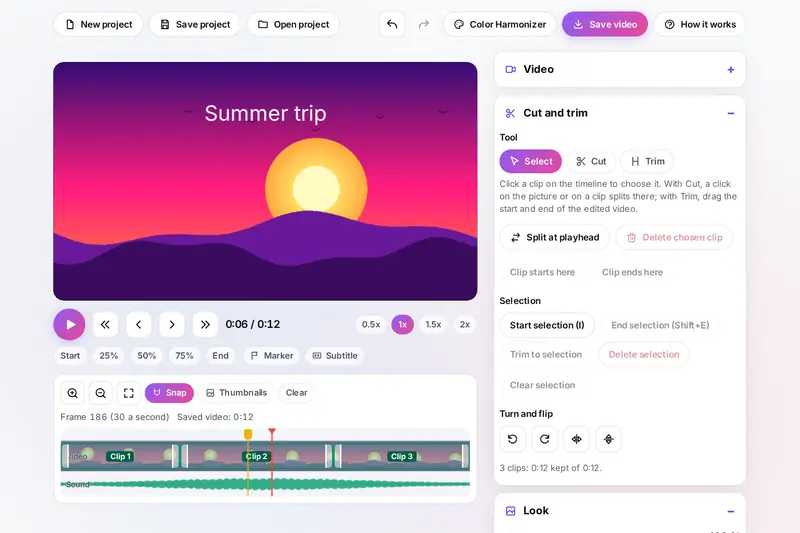
Table of Contents
Overview
A video straight from a phone or camera usually needs a little work before it is shared: the slow start cut away, a part in the middle removed, the colour warmed up, a title or subtitles added, some music under it, and perhaps an upright shape for a phone screen. WebEdit Pro does that in one page. You open the video once, and every change shows in the preview and can be undone.
The tools sit in groups beside the preview: Cut and trim (split, delete, trim, slide, selections, turns and flips), Look (brightness, contrast, saturation, eight looks and the shape), Colour grading (warmth, tint, shadows, midtones, highlights), Speed (with speed ramps), Text and subtitles, Fades and transitions, Sound (volume, mute, sound fades, normalizing and imported music), Video layers, Green screen and Markers. The Color Harmonizer gives several clips the same colour or matches your video to another one.
All of it runs in your browser: your video is played, edited and recorded on your device, so nothing is uploaded.
Key Features
Cut, Split and Trim
A timeline with clips you split, delete, trim and slide, selections, snapping, markers and undo for every step.
Colour and Looks
Brightness, contrast, saturation, eight looks and colour grading for warmth, tint, shadows, midtones and highlights.
Text and Subtitles
Titles dragged into place on the picture, and subtitles shown in the video and saved as an SRT file.
Music and Sound
Up to five music or voice files mixed with the video's sound, volumes, mute, sound fades and normalizing.
Fades and Transitions
Fades in from black and out to black, and fade, dissolve, wipe or slide transitions as a clip begins.
Speed and Shape
A quarter of the speed to four times faster, smooth speed ramps, turns, flips and shapes such as 9:16 and 1:1.
Layers and Green Screen
Up to five videos drawn over yours with their own size, place and opacity, and a colour made see-through.
MP4 or WebM
Saved at 720p, 1080p, 4K or the video's own size, as MP4 where the browser can record it, otherwise WebM.
How to Use
- Open a video - Drop it on the editor or choose it. The preview, the playback buttons and the timeline appear, with the sound picture and small pictures along it.
- Cut what you do not need - Split at the playhead (S), click a clip and delete it, or select a part with I and Shift+E and delete it. Drag the ends of a clip to trim it.
- Fix the colour and shape - Change brightness, contrast and saturation, try a look, grade the warmth and shadows, and pick a shape such as 9:16 for phones.
- Add text, subtitles and music - Add a title and drag it into place, add subtitles from the playhead, and import music with its own volume.
- Add effects - Fade the video and the sound in and out, put a transition where a clip begins, change the speed, or add a video layer with green screen.
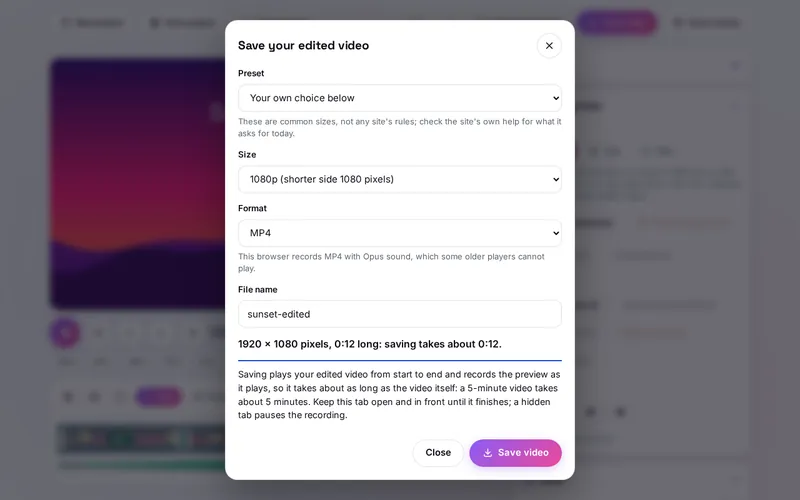
- Save the video - Press Save video, choose the size, MP4 or WebM and the file name, and keep the tab open while it records.
How the Tool Works It Out
- One drawing for the preview and the file - Every frame is drawn the same way in the preview and in the saved video: the kept clips in order, turned, flipped and cut to the shape, then the colour, the transition, the layers, the texts, the subtitle and the fades.
- Colour - Brightness, contrast, saturation and the looks are the standard filters that browsers use for pictures, as the W3C Filter Effects specification defines them. The grading adds red and takes away blue for warmth, moves green for tint, and bends the light with a curve for shadows, midtones and highlights.
- Time - The saved video's length is the time of the kept clips divided by the speed, with speed ramps worked out exactly. Fades, music and video layers follow that clock, so music keeps its own speed when the video is faster or slower.
- Sound - The video's sound and the imported files are mixed with their volumes, then the sound fades are applied to the whole mix. Normalize brings the loudest sample of the video's sound to 1 dB below the top of the scale, the headroom the EBU R 128 recommendation keeps for peaks.
- Saving - The browser plays the edited video from start to end and records the frames and the sound as they are drawn. That is why saving takes about as long as the video. At the joins between clips the recording waits while the video jumps, so the file has no frozen frames there.
- Checked before publishing - We compared the tool with references made separately: 28,171 cases in 15 groups of the editor's engine: the cutting, trimming and sliding of clips and the times of the saved video compared with a separate program, the speed ramps with numerical integration, every colour filter with the W3C Filter Effects definitions pixel by pixel, the colour measurements and corrections with the earlier version, the sizes, file types, subtitle files and the length written into WebM files, and thousands of damaged or crafted project files, kept edits and colour profiles made to break the tool; and 185 checks in a browser, from opening, cutting, mixing and recording real videos (read back frame by frame and their sound measured) to the layout on phones and computers. The original version showed turns, flips, fades and the volume only in the preview and left them out of the saved video, never drew its green screen, transitions or video layers, recorded without the imported music, named WebM files .mp4, stretched upright videos to a wide frame, measured loudness from one moment of sound, lost colour profiles named __proto__ and read project files without checking them; that is fixed.
Videos for Phones, Sites and Sharing
Phones show upright videos best: a 9:16 shape keeps the middle of a wide video and cuts the sides, and the 1080p size gives 1080 x 1920 pixels. For widescreen players, 16:9 at 1080p gives 1920 x 1080, and a square post uses 1:1. The presets in the Save window set these common shapes and sizes; video sites change their own advice now and then, so check what a site asks for today. A larger size looks sharper and makes a larger file, and the saved video can be up to 30 minutes long.
MP4 is the format most players and sites take, and it is made where the browser can record it (recent Chrome, Edge and Safari). Some browsers record MP4 with Opus sound, which a few older players cannot play; where MP4 cannot be recorded at all, the file is WebM, which current browsers and most players play. Subtitles can be in the video itself and also saved as an SRT file for sites that show captions on their own.
Some of this overlaps other tools on the site. GIF Forge turns a part of a video, a screen recording or pictures into a short GIF or clip, and the media converter changes a file from one format to another. WebEdit Pro is the one to use when the video itself needs editing: cutting, colour, text, music, transitions and layers.
Frequently Asked Questions
The questions people ask most are answered on the tool page, just below the tool. The full list of 33 questions, from opening a video to cutting, colour, text and subtitles, sound, saving and your privacy, is on the WebEdit Pro FAQ page, and every part of the tool is explained step by step in the help guide.
Privacy & Security
This tool has no upload step, no account and no server-side storage. The videos, pictures and sound files you open are played, edited and recorded by this browser. Your edit (not the video) and your colour profiles are kept only in this browser on this device; New project removes the edit.
The tool asks no outside service for anything. Like every page on ZeroDataUpload, the tool page shows ads through Google AdSense and counts visits with Google Analytics; the Privacy Policy explains both.
Ready to edit your video? It's free, private, and runs entirely in your browser.
Open WebEdit Pro →Related

Last Updated: November 3, 2026