
PixelForge: an Online Photo Editor with Background Removal and Collages
Crop, fix the light, add text or a watermark, change the background and save the size you need, in your browser
Guide reviewed 12 November 2026 by Milan Salvi. How we write and correct guides.
Open PixelForge →Step-by-step help guide and questions and answers for this tool.
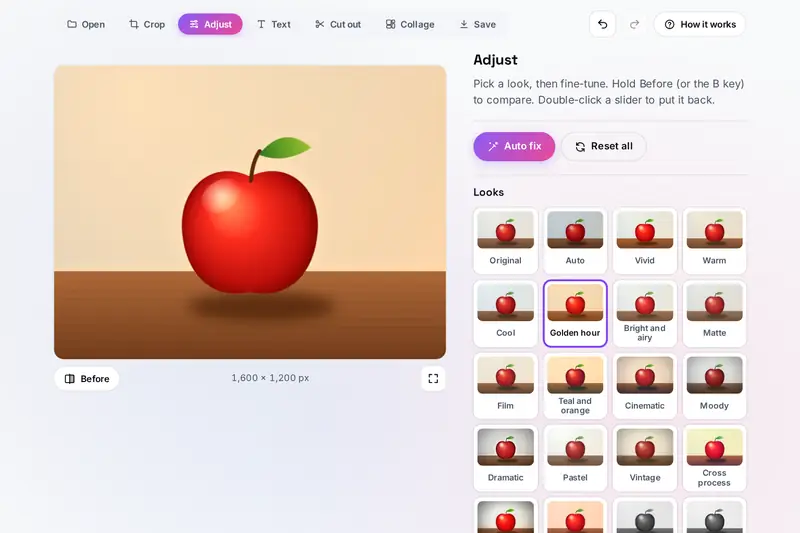
Table of Contents
Overview
Most photos need a little work before they are used: a crop, a straighter horizon, better light, a name on them, a plainer background, or a smaller file for a form that only takes 100 KB. PixelForge does all of that in one place. You open a photo once and every tool works on it, with every change shown on the photo and every step undoable.
The tools are Crop and turn (shapes, straightening, plain edges cut off), Adjust (Auto fix, 22 looks shown on your own photo and 18 sliders), Text and watermark (eight fonts, logos, repeated watermarks kept for other photos), Background (the subject found from its colours and edges, fixed with rough marks, and a colour, a blur or a picture put behind it), Collage (up to 40 photos in 35 layouts or fitted rows) and Save (JPG, PNG, WebP or AVIF, in any size, under a file size or with a print size, and the same changes on many photos at once).
All of it runs in your browser. Even finding the subject for a new background happens on your device, from the photo's own pixels, so nothing is uploaded.
Key Features
Crop and Straighten
A crop box with shapes from square to A4 and 35 x 45 mm, quarter turns, mirroring and straightening up to 45 degrees.
Looks on Your Photo
Auto fix and 22 looks, each shown as a small picture of your own photo, with a strength slider.
Eighteen Sliders
Light, bright and dark parts, whites and blacks, warmth, colour, clarity, sharpening, smoothing, blur and effects.
Text and Logos
Eight fonts with outline, shadow and box, logos with see-through parts, placed by dragging or in nine spots.
Watermarks
A quick copyright watermark, patterns repeated across the photo, and your watermark kept for other photos.
Background Removal
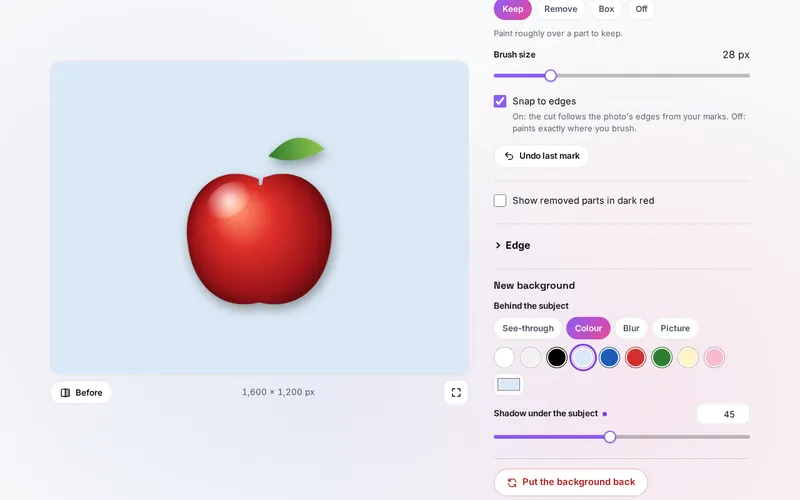
The subject found on your device, rough Keep and Remove marks that snap to edges, a box or a colour removed.
Collages
Up to 40 photos in 35 layouts or fitted rows, any shape, spacing, round corners and a colour or blurred background.
The Size You Need
JPG, PNG, WebP or AVIF at full size, a long side, an exact size or a percent, under a file size, for many photos at once.
How to Use
- Open a photo - Drop it on the page, paste it or press Open photos; on a phone you can take one. Several photos at once can become a collage or get the same changes.
- Crop and turn - Drag the crop box or pick a shape, turn or mirror the photo, and straighten it with the slider.
- Fix the light and colour - Press Auto fix or pick a look, then fine-tune the sliders; hold Before to compare.
- Add text or a watermark - Add a caption, a logo or a Quick watermark, drag it into place, and keep it as your watermark if you like.
- Change the background - Press Find the subject, fix the cut with Keep and Remove, and choose a colour, a blur or a picture behind it.
- Save - Choose the file type and size, keep the file under a size if a form asks for one, and save, copy or share it.
How the Tool Works It Out
- Light and colour - The sliders work in one pass over the pixels: brightness and white balance in linear light (the light as the camera measured it), then a tone curve for contrast, whites, blacks and a faded look, then colour, toning and the corners. Bright and dark parts follow a blurred copy of the photo's light, so fine detail inside them stays. The live picture and the saved file use the same steps, with blurs sized by the photo, so they look the same.
- Auto fix - It measures the photo's light and colour: the middle brightness is moved towards a middle grey, the darkest and brightest half a percent are stretched, and most of a colour cast is taken away by comparing red, green and blue in the mid-tones.
- Finding the subject - A small copy of the photo is split into a few hundred regions of similar colour. Regions that touch the photo's edges a lot for their size are taken as background, and regions that stand out from them, nearer the middle, as the subject. Colour models of both are learned, and a minimum cut through the pixels (the cheapest line that separates subject from background, following the strongest edges) gives the outline. Your Keep and Remove marks fix pixels to one side and the cut is drawn again.
- Soft edges at full size - The outline is worked out on a small copy, then rebuilt for the full photo with a filter guided by the photo's own pixels, so the edge follows fine hair. Clean edge colours estimates the subject's own colour in the soft edge, so the old background does not shine through on a new one.
- Saved files - The browser makes the file; PixelForge then removes the colour profile and notes the browser writes in, writes the dots per inch you chose, and keeps no location or camera details.
- Checked before publishing - We compared the tool with references made separately: 20,508 cases in 14 groups: every slider and look compared pixel by pixel with a separate program written from the same formulas; Auto fix, the curves, the blurs, the guided filter, colour removal and edge cleaning compared with their formulas; the cut compared with an exact minimum cut worked out by another program; the subject found in drawn test photos; saved files read back by another program for their print size and to confirm that no location or camera details are left; the camera details of test photos compared with another program's reading; and saved settings, kept photos, collages, watermarks, file names and file headers made to break the tool. The original version drew dark halos with Clarity where Brightness had made parts brighter than white, wrote a print size above 65,535 dpi wrongly into a JPEG, made zips of more than 65,535 photos that list the wrong number, showed camera texts of any length and places outside the Earth, opened any file before looking at its size, gave file names that Windows refuses, and read back saved settings, kept photos and collages without checking them; that is fixed.
Photos for Forms, Prints and Posts
Application forms often ask for a photo under a file size, such as 50 or 100 KB, and sometimes at an exact size. Under Save, Keep the file under a size lowers the quality first and then the size until the file fits, and shows the size before you save; with an exact size, only the quality goes down. JPG gives the smallest photos. For a document photo, the 35 x 45 mm shape and size are those of many countries, but the size, background colour and head size differ from country to country, so check the rules of the office you apply to.
For prints, the dots per inch tell a printer how big to print: at 300, a common choice for sharp prints, a photo 3,000 pixels wide prints 25.4 cm (10 inches) wide. For posts, the common sizes under Exact size give the usual shapes of social sites; they are examples, because the sites change them.
Some of this overlaps other tools on the site. UltraCompress Pro makes many pictures smaller at once, Watermark Studio Pro is built for watermarks, SocialSizer makes one picture in the sizes of many social sites, and Passport Photo Maker lays passport photos out on a print sheet. PixelForge is the one to use when the photo needs editing as well: a crop, better light, text, a new background or a collage.
Frequently Asked Questions
The questions people ask most are answered on the tool page, just below the tool. The full list of 38 questions, from opening photos to cropping, looks, text and watermarks, background removal, collages, saving and your privacy, is on the PixelForge FAQ page, and every part of the tool is explained step by step in the help guide.
Privacy & Security
This tool has no upload step, no account and no server-side storage. The photos you open are read, edited and saved by this browser. Your settings, your watermark, the photo you are editing and your collage are kept only in this browser on this device; Close this photo and Start over remove them.
The tool asks no outside service for anything, not even for background removal. Saved pictures keep no location, camera details or editing notes. Like every page on ZeroDataUpload, the tool page shows ads through Google AdSense and counts visits with Google Analytics; the Privacy Policy explains both.
Ready to edit your photo? It's free, private, and runs entirely in your browser.
Open PixelForge →Related
Last Updated: November 3, 2026