
CertificateMaker
Design a certificate of achievement, course completion, award, participation or appreciation beside a live preview, with your fonts, colours, logo and signature, and save it as a PDF or PNG, for one recipient or a whole list
Guide reviewed 6 October 2026 by Milan Salvi. How we write and correct guides.
Open CertificateMaker →Step-by-step help guide and questions and answers for this tool.
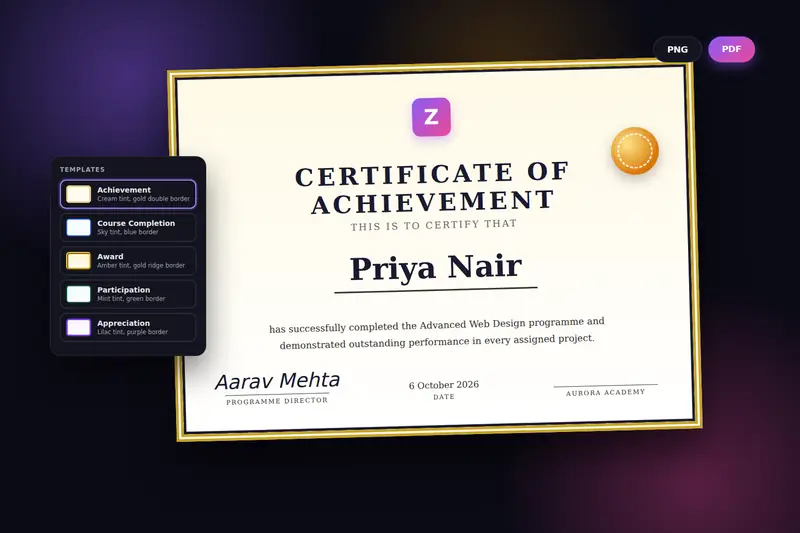
Table of Contents
Overview
CertificateMaker is a free certificate generator that runs entirely in your browser. The page is an editor beside a live preview: you pick a template, write the title, the recipient's name, a line or two about what was achieved, the issuer and the date, choose fonts, colours, a border and the paper size, add a logo and a signature, and the certificate redraws on the right with every keystroke. PDF saves it at the chosen page size, PNG as an image, and Print sends it straight to a printer.
It was built for the moments when one good-looking certificate is needed without a design program: a teacher closing a course, a club presenting an award, an organiser thanking the participants of an event, an employer recognising a team member. Five templates give the title, the colours and a light tint of the paper to start from; six border styles, seven fonts and four colours make it yours. For a whole class or a whole event, Bulk (CSV) turns a list of names into one PDF with a page for each.
There is no account and no server. The certificate is drawn in the page and the PDF or PNG is made on your own device; the only things kept between visits are the designs you save under a name and a short history of the certificates you exported, both in your browser. Nothing is uploaded, which also means the tool keeps working without an internet connection once the page has loaded.
Key Features
Live Preview
The certificate sits beside the editor at the paper's proportions and redraws as you type, so what you export is exactly what you saw. On phones it moves above the editor.
Five Templates
Achievement, Course Completion, Award, Participation and Appreciation, each with a title, a colour pair and a light tint of the paper to start from.
Six Borders in Your Colour
Classic, Modern, Elegant, Minimal, Ornate or none, drawn in the accent colour you choose, with the title colour for the inner lines of Classic and Elegant.
Fonts, Sizes and Alignment
Georgia, Times New Roman, Palatino, Book Antiqua, Arial, Segoe UI and Helvetica for the title and the body, separate sizes for the title and the name, and left, centre or right alignment.
Logo and Three Ways to Sign
Your organisation's logo above the title, and a signature drawn on the pad, uploaded as an image or typed in one of four script fonts, with a label of your choice beneath it.
A4 or Letter, Any Way Up
A4 and US Letter, landscape or portrait. The PDF is made at that page size, the PNG at double resolution, and Print sets the page to match.
Bulk from a CSV
One design, a list of names, one PDF with a certificate per page. The first ten names and the count are shown before anything is made.
Saved Designs, History, Undo
Save Template keeps a design under a name, Load Template brings it back, Duplicate copies a certificate for the next recipient, History lists the last twenty, and Ctrl+Z steps back through fifty changes.
How to Use
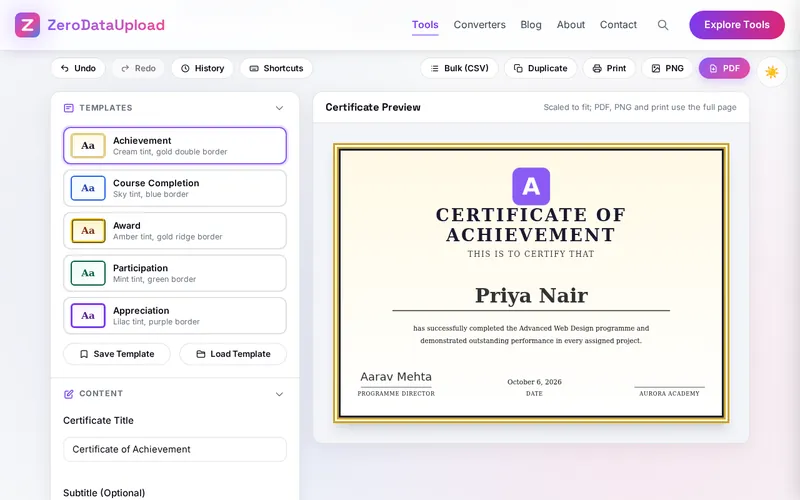
- Pick a template - Achievement, Course Completion, Award, Participation or Appreciation. Each sets a title, a title colour and an accent colour and tints the paper lightly; all of it can be changed afterwards.
- Write the content - The title, a subtitle such as "This is to certify that", the recipient's name, a sentence or two about what was achieved, the issuer's name, and the date in one of four formats.
- Choose fonts and colours - A title font and a body font, the size of the title and of the name, the alignment, and the title, text, background and accent colours. White keeps the template's tint; any other background replaces it.
- Set the border, paper and logo - One of six border styles, A4 or US Letter, landscape or portrait, and your organisation's logo dropped on the upload box.
- Sign it - Draw on the signature pad and click Use Signature, upload an image of a signature, or type a name in a script font. Set the label under the line: "Authorized Signature", "Principal", "Director".
- Export - PDF (Ctrl+Shift+F) saves a one-page file at the paper size, PNG (Ctrl+Shift+E) an image, Print (Ctrl+Shift+P) sends it to the printer. Save Template keeps the design for next time.
- Make a batch - For many recipients, click Bulk (CSV), choose a CSV file with the names in the first column, check the preview and click Generate All. One PDF with a page per name downloads.
Templates, Borders, Fonts and Signatures
Four choices do most of the work on a certificate, and the tool keeps each of them simple:
- Templates - A template is a starting point, not a cage. Achievement is cream and gold with a navy title; Course Completion sky blue and royal blue; Award amber and gold with a brown title; Participation mint and dark green; Appreciation lilac and purple. Choosing one sets the title and the two colours and tints the paper; every setting stays editable, and Save Template keeps a design of your own beside them.
- Borders - Classic is the traditional thick double rule with an inner line; Modern a plain rule with a thin pale line inside; Elegant a dark band with a thin accent line; Minimal a single thin rule; Ornate a wide ridged frame; None leaves the paper bare. All of them are drawn in the accent colour, so a school's blue or a company's green goes round the page with one colour change.
- Fonts - Serif faces (Georgia, Times New Roman, Palatino, Book Antiqua) give the formal look most certificates want; Arial, Segoe UI and Helvetica suit a modern one. The title and the name have their own sizes because the name should be the largest thing on the page after the title, and often larger. The fonts are the ones installed on your device, so export where you designed.
- Signatures - A drawn signature (mouse or finger on the pad) or a scanned one (an image with a transparent background) reads as a personal commitment. A typed name in a script font is an honest placeholder when the signatory is not at hand. The label beneath the line names the role; the issuer's name goes under the right-hand line and the date in the middle.
Landscape A4 or Letter is the usual choice because it frames the name well and fits a standard certificate holder; portrait suits a long description or a list of modules. The preview keeps whichever proportions you choose, scaled to fit the window, and the PDF and the print come out at the full page.
Frequently Asked Questions
The questions people ask most about CertificateMaker are answered on the tool page, just below the tool. The full list of 39 questions, from storage and privacy to troubleshooting, is in the CertificateMaker FAQ, and the help guide walks through every feature step by step.
Privacy & Security
A certificate carries a person's name, an organisation's logo and a real signature. CertificateMaker has no upload step and no server-side storage: the certificate is drawn in the page, the PDF and the PNG are made in your browser, saved designs and the history live in your browser's storage on your own device, and the only copy that ever leaves it is the file you choose to download.
The tool keeps its saved designs, its history and your theme choice in the browser, and nothing else. Like every page on ZeroDataUpload, the tool page shows ads through Google AdSense and uses Google Analytics; the Privacy Policy and Cookie Policy explain what those services collect and how the cookie banner controls them. Your certificates are never part of it.
Ready to try CertificateMaker? It's free, private, and runs entirely in your browser.
Open CertificateMaker →Related

Last Updated: October 6, 2026