
SafeBeam: WiFi File Transfer Between Your Phone and Your Laptop
Photos, videos, music and documents go straight from one device to the other, locked by a password, with nothing uploaded
Guide reviewed 17 November 2026 by Milan Salvi. How we write and correct guides.
Open SafeBeam →Step-by-step help guide and questions and answers for this tool.
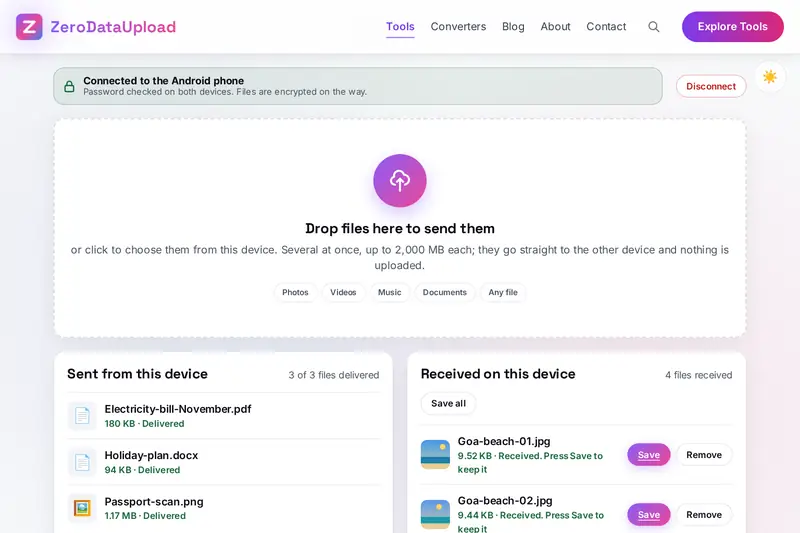
Table of Contents
Overview
Getting a few photos from a phone to a laptop should be simple, and it rarely is. The cable is in another room, the two devices come from different makers, and the quick ways round it (mailing the files to yourself, putting them in a chat, uploading them to a storage service) all send private files through somebody else's computers on the way to a device that is lying fifty centimetres away.
SafeBeam takes the short way. Both devices open the same page, find each other on your own WiFi and connect directly. Files then go straight from one to the other, in either direction: photos and videos from the phone to the laptop, documents and music from the laptop to the phone. There is nothing to install and no account to open.
Three things protect a transfer. No server stands between the two devices, so there is no copy of your files anywhere else. Both devices must prove that they know the same transfer password before a single file moves. And every piece of every file is encrypted and checked on arrival.
Key Features
Device to Device
Files travel directly between the two devices over your own network, never through a server.
Locked by a Password
Nothing is sent or accepted until both devices have proved the same transfer password.
Encrypted on the Way
Every piece of a file is sealed with a one-session key and checked when it arrives.
Both Directions
Phone to laptop and laptop to phone in the same session, several files at once.
Any Kind of File
Photos, videos, music, documents and archives, up to 2,000 MB for one file.
Paired by Two Codes
Each device shows a code once and the other reads it with its camera, or takes it as text.
You Decide What Is Saved
Received files wait in the page; one is written to your device only when you press Save.
Nothing Kept
No account, no history, no saved password. Closing the page forgets the session.
How to Use
- Choose a transfer password - On the first device, type at least eight characters or let the tool suggest a password.
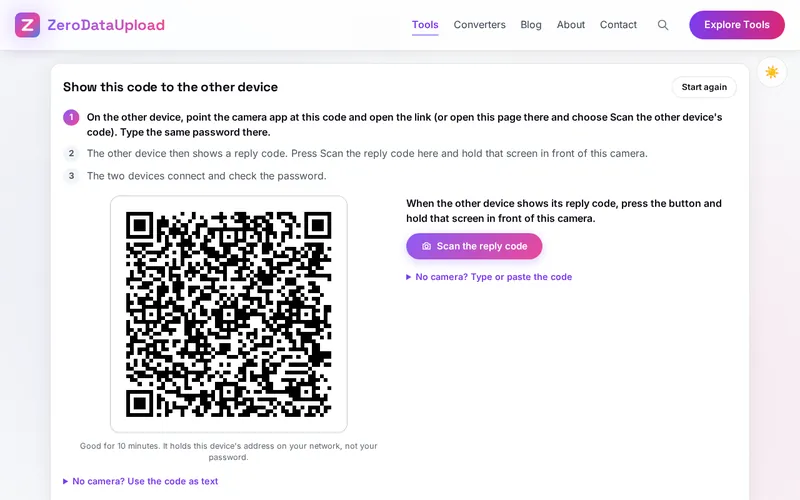
- Show the first code - Press Show a code on this device. The code is good for ten minutes.
- Read it with the second device - Point its camera app at the code and open the link, or open the page there and choose Scan. Type the same password.
- Scan the reply - The second device shows a reply code. On the first, press Scan the reply code and hold the other screen in front of the camera.
- Wait for the password check - The devices connect and each proves the password to the other. A wrong password can be typed again, three tries in all.
- Send and save - Drop files on the page or choose them. On the other device they appear with a Save button. Press Disconnect when you are done.
How a Transfer Is Protected
- No server in the middle - The two codes carry what the devices need to find each other on your network: their local addresses and a few one-time values. They pass from screen to camera, so the directions never travel over the internet, and the page names no helper server for the connection at all.
- The password is proved, not sent - The password check follows a published internet standard (RFC 9382). Each device mixes the password into a one-time value; only two devices that started from the same password arrive at the same secret, and each proves to the other that it did. The password never travels, and what does travel gives a listener nothing to test guesses against.
- Three tries - The only way to test a guess is to take part in a check, and each check tests exactly one. After three wrong tries the connection is closed and the devices must be paired again.
- The check covers the connection - The proof includes the fingerprints of the two browsers' connection certificates, so a device that put itself between the two would fail the check.
- Every piece sealed and numbered - The check leaves both devices with a secret key for that one session. Every piece of a file is sealed with it (the AES standard, 256-bit keys, authenticated mode) and numbered. A piece that was changed, repeated, left out or moved fails its check, and the connection is closed.
- Care with what arrives - File names are cleaned before they are shown, files a browser could run as a page are saved as plain data, and nothing is written to your device until you press Save.
- Checked before publishing - We tested the part that does the password check, the sealing and the codes apart from the page: 69,533 cases, among them the four test cases published with the standard, which it reproduced value for value. The page was then used in test browsers: 133 checks, none failed, among them pairing by link, by camera and by typed code, wrong passwords, files in both directions with names made to break the page, cancelling from either side, and a file of exactly 2,000 MB that was sent, saved and found identical to the original; the pairing was repeated between Chromium and Firefox in every combination and in the protected form in which the scripts are published. These tests ran between browser windows on one computer with a simulated camera; real phones, real WiFi networks and Safari were not part of them.
When It Fits, and When It Does Not
SafeBeam is made for two devices that are in the same place and on the same network: your phone and your laptop at home, a tablet and a desktop in the office, a friend's phone and yours on your WiFi or on a phone's hotspot. In that setting it is the most private way short of a cable, because the files never exist anywhere but on the two devices.
It is not made for sending files to somebody far away. Two devices on different networks cannot reach each other directly, and SafeBeam deliberately sets up no server that would carry the files between them. For that, a storage service or an encrypted archive sent by mail is the right tool; ArchivePro on this site can make a password-protected archive in your browser first.
A few practical limits follow from working inside a browser. One file can be up to 2,000 MB, because a browser cannot save a larger received file. A received file is held in the browser's memory until you save it, so a phone with little free memory may not take a very long video; send such files one at a time. And both pages have to stay open and in front while files are moving: a phone that goes to sleep in the middle ends the connection.
Some networks keep their devices apart on purpose. Guest WiFi in hotels, cafes and offices is often set up that way, and a VPN can have the same effect. If the two devices do not find each other, use your home WiFi or switch on the phone's hotspot and connect the laptop to it.
Choose a transfer password you do not use anywhere else. It only has to last for one session, and the tool can suggest one that is easy to read off one screen and type on the other.
Frequently Asked Questions
The questions people ask most are answered on the tool page, just below the tool. The full list of 41 questions, from connecting the two devices to the password, file sizes, troubleshooting and your privacy, is on the tool's FAQ page, and the help guide walks through every step.
Privacy & Security
This tool has no upload step, no account and no server-side storage. Your files, their names, your transfer password and the two codes are not sent to this site or to any other server. The tool writes nothing to the browser's storage, and the camera is on only while a scanner is open; its pictures are looked at inside the page and thrown away.
The tool asks no outside service for anything. Like every page on ZeroDataUpload, the tool page shows ads through Google AdSense and counts visits with Google Analytics; the Privacy Policy explains both.
Ready to move your files? It's free, needs no cable, and the files go straight from one device to the other.
Open SafeBeam →Related

Last Updated: November 17, 2026