
TextTransform
Convert text between fourteen cases, clean up what you pasted, sort and deduplicate lines, find and replace with regular expressions and read live statistics, with every character kept in your browser where nobody else can see it
Guide reviewed 7 October 2026 by Milan Salvi. How we write and correct guides.
Open TextTransform →Step-by-step help guide and questions and answers for this tool.
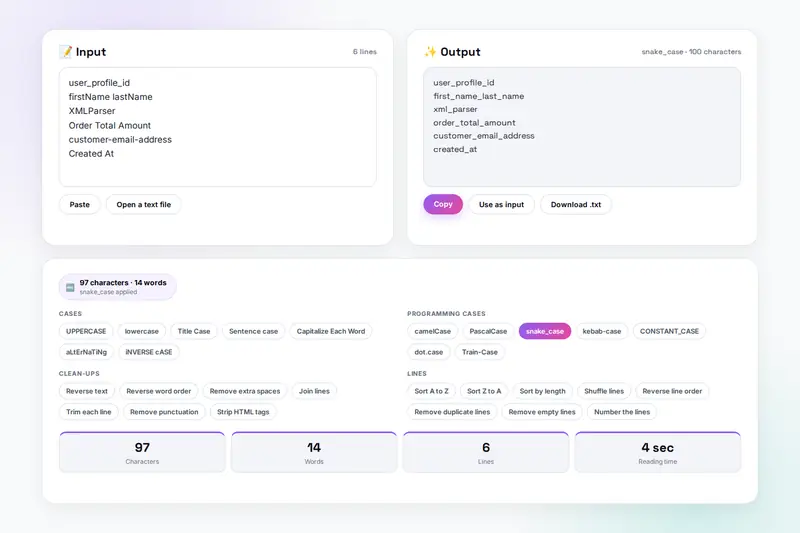
Table of Contents
Overview
TextTransform is a text toolkit that runs entirely in your browser. Paste text into the input box and press a button: seven everyday cases from UPPERCASE to iNVERSE cASE, seven programming cases from camelCase to Train-Case that split words at capital letters as well as spaces, seven clean-ups for the doubled spaces, hard line breaks, punctuation and HTML tags that pasted text brings with it, and eight line operations that sort, shuffle, reverse, number and deduplicate. The result appears in the output box, and Use as input moves it back so the next transformation can be applied.
Find and replace works on the same input with match case, whole word and regular expression options and a live match count, with captured groups available in the replacement. The Statistics card counts characters, words, unique words, sentences, paragraphs and lines and estimates the reading time as you type, and two frequency cards show the characters and words the text uses most, with filters for letters only and for common words.
Nothing is uploaded: every transformation runs on the page, the input is remembered in your browser's storage until you clear it, and the only copies that leave are the files you download. There is no account and no server.
Key Features
Seven Cases
UPPERCASE, lowercase, Title Case with short words kept lowercase, Sentence case, Capitalize Each Word, aLtErNaTiNg and iNVERSE cASE.
Seven Programming Cases
camelCase, PascalCase, snake_case, kebab-case, CONSTANT_CASE, dot.case and Train-Case, splitting firstName and XMLParser correctly, line by line.
Seven Clean-ups
Remove extra spaces, join lines, trim lines, remove punctuation, strip HTML tags, reverse the text or the word order.
Eight Line Operations
Sort A to Z, Z to A or by length with numbers compared by value, shuffle, reverse, remove duplicate or empty lines, number and unnumber.
Find and Replace
Match case, whole word and regular expressions with $1, $2 and $& in the replacement, a live match count and invalid patterns reported.
Chaining
Use as input moves the output across for the next step; Ctrl+Enter repeats the last transformation.
Live Statistics
Characters with and without spaces, words, unique words, sentences, paragraphs, lines and reading time, updating as you type.
Frequency Cards
The twenty most frequent characters and fifteen most frequent words with bars, letters-only and common-word filters.
How to Use
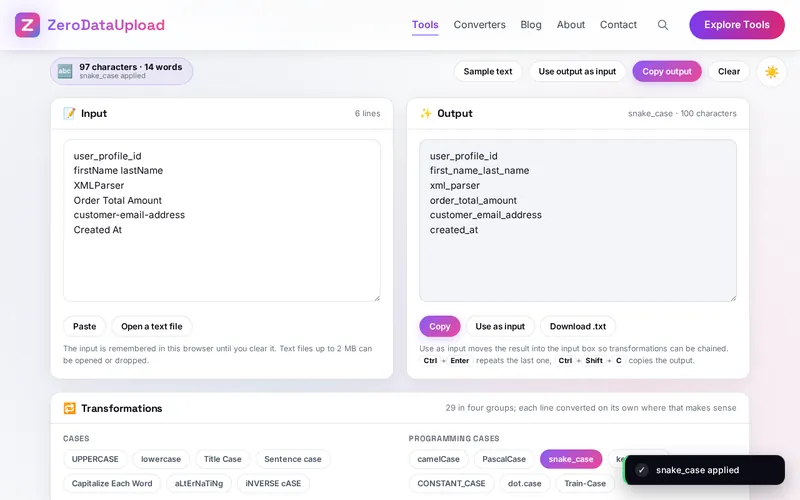
- Put the text in - Type or paste into the Input box, press Paste, drop or open a text file, or press Sample text. The statistics and frequencies update as you type.
- Pick a case - Cases for everyday writing, Programming cases for identifiers; each line is converted on its own.
- Clean it up - Clean-ups for spaces, line breaks, punctuation and tags; Lines for sorting, shuffling, numbering and duplicates.
- Find and replace - Type the search and the replacement, set Match case, Whole word or Regular expression, press Replace all.
- Chain transformations - Press Use as input and apply the next one; Ctrl+Enter repeats the last.
- Take the result - Copy the output or Download .txt; the input stays remembered in your browser until you clear it.
Cases, Clean-ups and Frequency
- Which case is which - camelCase for variables in JavaScript and Java, PascalCase for classes and types, snake_case for Python and database columns, kebab-case for URLs, CSS classes and file names, CONSTANT_CASE for constants and environment variables, dot.case for configuration keys, Train-Case for HTTP headers.
- Cleaning pasted text - Join lines rebuilds paragraphs broken by a PDF; Trim each line and Remove extra spaces tidy a pasted spreadsheet column; Strip HTML tags cleans a web page; Remove duplicate lines then Sort A to Z cleans a list exported twice.
- What the frequencies show - Letter frequency is a language's fingerprint and the first step in solving a substitution cipher; word frequency with common words ignored shows what a text is about.
Frequently Asked Questions
The questions people ask most about TextTransform are answered on the tool page, just below the tool. The full list of 25 questions, from storage and privacy to troubleshooting, is in the TextTransform FAQ, and the help guide walks through every feature step by step.
Privacy & Security
Contracts, source code, customer lists, a draft nobody has read: TextTransform has no upload step, no account and no server-side storage. Every transformation runs on the page, the input is kept in your browser's storage until you clear it, and the only copies that leave are the files you download yourself.
The tool asks for no permissions except the clipboard when you paste or copy, and loads nothing from outside the site. Like every page on ZeroDataUpload, the tool page shows ads through Google AdSense and uses Google Analytics; the Privacy Policy and Cookie Policy explain what those services collect and how the cookie banner controls them. Your text is never part of it.
Ready to try TextTransform? It's free, private, and runs entirely in your browser.
Open TextTransform →Related

Last Updated: October 7, 2026