
ToolForge: a Text Compare Tool, a Duplicate File Finder and Seven Everyday Tools
See what changed between two versions, down to the word, find copies of files by content, by name and by look, and keep notes, clean text, clips, links and tables in one place, in your browser
Guide reviewed 15 November 2026 by Milan Salvi. How we write and correct guides.
Open ToolForge →Step-by-step help guide and questions and answers for this tool.
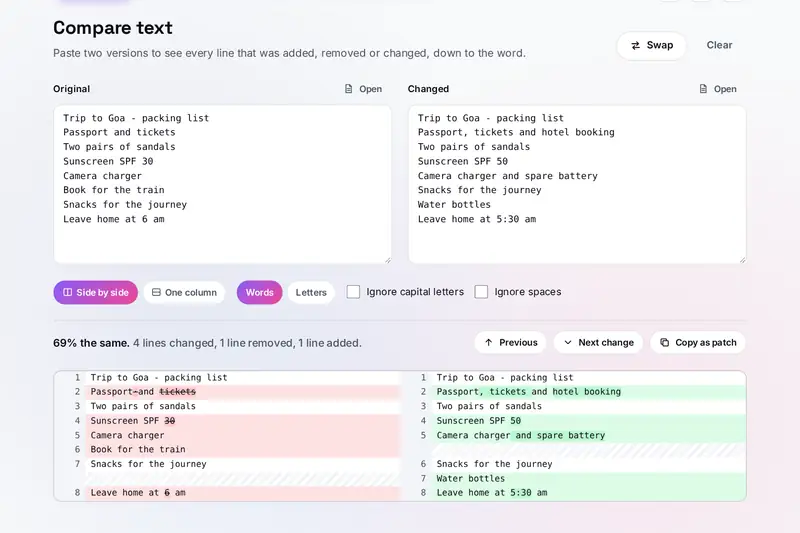
Table of Contents
Overview
Two versions of the same text are hard to tell apart by eye: a contract that came back with edits, a list someone tidied, a paragraph you rewrote last week. ToolForge's Compare puts them side by side and shows every line that was added, removed or changed, with the changed words (or letters) marked inside each changed line, so the one number or comma that moved is the first thing you see.
Folders fill up with copies: the same photo downloaded twice, report (1).pdf next to report.pdf, a file a sync service kept as a conflicted copy, pictures saved again at another size. ToolForge finds them on your device, by content, by name and by look, and helps you clear them out without losing anything you meant to keep: the extra copies go to a folder of their own first, and nothing is deleted unless you say so twice.
Around the two sit seven tools for the work that comes up every day: notes with folders, tags and checklists, a step-by-step text cleaner that also shows hidden characters, a clipboard list of the text and pictures you paste again and again, a link opener, and three table tools that turn pasted rows into a table you can edit, a table copied from a web page into CSV, and JSON into a real Excel file.
All of it runs in your browser: your files, texts and notes stay on your device.
Key Features
Line by Line, Word by Word
Every added, removed and changed line, with the changed words or letters marked inside a changed line.
Side by Side or One Column
The two versions next to each other, or one column with - and + signs, with unchanged runs folded away.
Ignore Case and Spaces
Leave capital letters or spaces out of the comparison, and copy the result as a standard patch.
Notes That Stay Organised
Folders, #tags, pinned notes, checklists you tick in the preview, and a Trash that keeps notes for 30 days.
Clean Text by Steps
Over 30 steps and ten recipes, each saying what it changed, with hidden characters shown.
A Clipboard List
Text and pictures you use again and again, one click to copy, with blanks you fill in as you copy.
Open Many Links
Every link in a text, tidied of repeats and tracking tags, opened a few at a time or one by one.
Tables Three Ways
Text to table, web page tables to CSV with merged cells, and JSON to a real Excel file and back.
Exact Copies by Content
Files of the same size are compared by a SHA-256 fingerprint of their whole content, whatever their names.
Copies by Name
report (1).pdf, report - Copy.pdf, Copy of report.pdf and conflicted copies, listed as versions to choose from.
Look-alike Photos
The same picture saved again, resized or lightly edited, found by a small picture fingerprint.
Moved Aside, Not Lost
Extra copies go to a _Duplicates folder you can check; deleting asks first, and scripts ask before they act.
How to Use
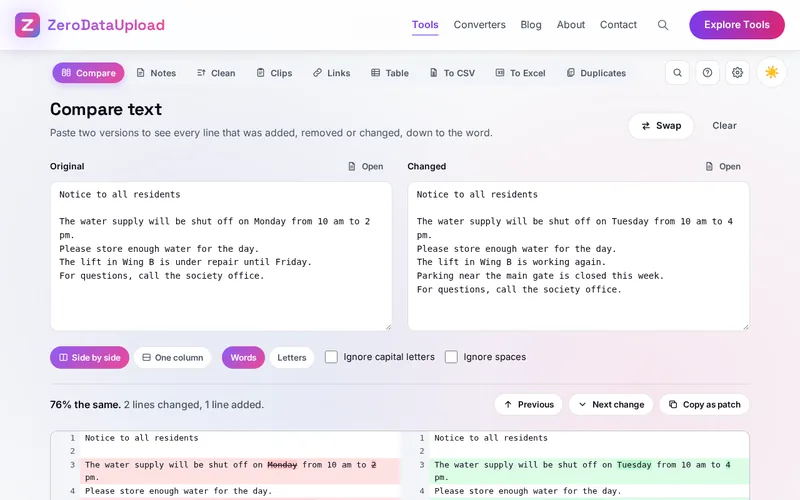
- Paste two versions - On Compare, paste the first version on the left and the changed one on the right, or open two text files. The differences show at once.
- Read the changes - Red lines were removed, green lines added, and changed lines show the words that changed. Next change jumps from one to the next.
- Choose how to compare - Side by side or one column, words or letters, and whether capital letters and spaces count. Copy as patch gives a patch file.
- Keep notes - On Notes, write with checklists, #tags and headings. Notes save as you type and can be pinned, searched and downloaded.
- Clean a text - On Clean text, paste your text and choose steps or a recipe; send the result to Compare to see exactly what changed.
- Clips, links and tables - Keep texts you use often in the Clipboard list, open the links in a text, or turn pasted rows into a table.
- Turn data into tables - Paste rows, a web page table or JSON into the table tools and save CSV, Excel and more.
- Choose a folder - On Duplicate files, press Choose a folder or drop one on the page. Tick Look-alike photos if you want pictures compared too.
- Look through the groups - In each group one file is kept; for exact copies the others are ticked. Change which one is kept, or tick by hand.
- Move the extra copies - Move to a Duplicates folder puts them in a folder named _Duplicates. Check it, then delete it yourself. In other browsers, save a script that asks before it changes anything.
How the Tool Works It Out
- The fewest changes - Both texts are split into lines, and the tool finds the shortest list of removed and added lines that turns the first version into the second, with the method published by Eugene Myers in 1986 that git and GNU diff use. Lines both versions share stay in order.
- Changed lines - A removed line and an added line next to each other are paired as one changed line when at least 45% of their letter pairs match, and the same method then marks the changed words (or letters) inside the pair.
- The percentage - The summary counts the characters in unchanged lines and in the unchanged parts of changed lines, out of both texts together.
- Notes - Notes are written in a small, safe part of Markdown: headings, lists, checklists, bold, italic, links and tables. Nothing a note holds can run as code in the page.
- Exact copies - Files are grouped by size first, since copies must be the same size. Files that share a size are compared by a fingerprint of their first and last 32 KB, and the ones that still match by a SHA-256 fingerprint of the whole file, read in 16 MB pieces when the file is large. Two files with the same size and fingerprint have the same content.
- Copies by name - Copy marks are taken off the end or start of each name (a number in brackets, - Copy, Copy of, copy 2, and the conflicted-copy marks that Dropbox, OneDrive, Syncthing and Nextcloud add), and files in one folder that end up with the same name but not all the same content are listed together.
- Look-alike photos - Each photo is shrunk to 9 by 8 grey squares and turned into a 64-bit difference fingerprint: one bit for each pair of neighbouring squares, saying which is brighter. Photos whose fingerprints differ in at most 8 bits are grouped; the largest picture is kept.
- Clean text - The steps run in order on a copy of your text; each one counts what it changed, and the Changes view compares your text and the result line by line.
- Checked before publishing - We compared the tool with references made separately: 189,821 cases in 19 groups: 3,005 pairs of texts compared, whose rows were checked to rebuild both texts and to be the fewest possible changes against a separate program, with every patch applied back; 4,033 hostile notes in which nothing could run; the copy-mark rules on about 24,000 names in five settings, fingerprints of files from empty to 70 MB compared with a well-known hashing library, picture sizes read from the first bytes of 240 pictures compared with an image library, picture fingerprints and look-alike groups, every cleaning step and recipe on hundreds of texts, 15,000 dates and numbers, CSV read back by a standard CSV reader, Excel files read back by a spreadsheet library and files that library wrote read by the tool, forgiving JSON, rows to JSON with names such as __proto__, links and tracking tags, the scripts run for real on files with hostile names, saved states, backups and notes files made to break the tool, and long notes and texts of up to 2,000,000 characters timed. Earlier versions of these tools could stop the page for minutes on one long line in a note (a run of [ or a heading followed by many spaces) and crashed on a long run of > signs, could run an HTML file from the checked folder with the site's address when Open was pressed, let a crafted column name change how the page worked, read 30 February and the year 0000 as dates, wrote 11 January 1900 as 12 January and 0001-01-01 as a day in 1901 in Excel files, showed Skip files under 1 KB but skipped nothing, took up to 70 seconds on some long texts and stopped on tables of more than about 120,000 rows; that is fixed.
Reading a Comparison Well
Start with the summary: a high percentage with a few changed lines means small edits, while many removed and added lines mean a rewrite. Then press Next change to walk through the differences in order instead of scrolling; each one is centred and flashes briefly. Inside a changed line, the marked words are the only ones that differ, so a changed date or amount stands out even in a long paragraph.
When a text was only reformatted, tick Ignore spaces (and Ignore capital letters, if the case changed) so that only real changes remain. Words is the better choice for prose; Letters shows single-character changes such as a corrected spelling or a changed digit. To keep a record of the changes or send them to someone who uses version control, Copy as patch gives them in the standard unified format.
Two other tools of this site come close and do something else: TextForge's Compare two texts compares two texts' numbers, such as their word counts and readability, while ToolForge compares their lines and words; StickyBoard is a board of sticky cards, while Notes is a list with folders, tags and checklists.
Cleaning Up Safely
A web page cannot put files in the Recycle Bin or the Trash: anything it deletes is gone. That is why ToolForge moves the extra copies into a _Duplicates folder inside the folder you checked, keeping their sub-folders, and leaves the deleting to you once you have looked through it. Exact copies are ticked for you, because nothing is lost when one copy stays; copies by name and look-alike photos are not, because they are often different versions of a document or a better and a worse shot of a photo.
When the browser cannot change the folder (on a phone, or outside Chrome and Edge on a computer), the tool saves a small script instead. Open it in a text editor first if you like: it lists every file it will move or delete, and when you run it, it shows that list again and changes nothing until you type YES. It never replaces a file that is already there.
Some of the other tools overlap with tools elsewhere on the site, and each has its own job. TextForge changes the case of a text and cleans its spacing in one go; Clean text runs the steps you choose in order and shows what each one changed. DataForge and CodeForge convert whole files between formats; ToolForge's table tools read a table copied from a web page with its merged cells, let you choose which part of a JSON file becomes the rows, and let you edit a table before saving it. Nothing else on the site finds duplicate files, opens many links at once or keeps a clipboard list.
Frequently Asked Questions
The questions people ask most are answered on the tool page, just below the tool. The full list of 43 questions, from how the differences are found to notes, Clean text, the clipboard list, links, the table tools and duplicate files, is on the ToolForge FAQ page, and every part of the tool is explained step by step in the help guide.
Privacy & Security
This tool has no upload step, no account and no server-side storage. The texts you compare and the folders and files you check are read by your browser on your device; their names and contents are never sent anywhere. Your notes, clips, recipes, sets of links and the text in the boxes are kept only in this browser, and Delete everything in the Settings window removes them.
The tool asks no outside service for anything; Open links opens only the links you choose, in new tabs, and links in your notes open only when you click them. Like every page on ZeroDataUpload, the tool page shows ads through Google AdSense and counts visits with Google Analytics; the Privacy Policy explains both.
Ready to see what changed? It's free, private, and runs entirely in your browser.
Open ToolForge →Related

Last Updated: November 15, 2026