
Prank Screen Studio: Fake Update, Blue Screen and Hacker Pranks, Done Kindly
22 pretend computer screens that look surprisingly real, a Gotcha with confetti when the joke is over, and a calm side: 12 living nature scenes and MoodScape
Guide reviewed 25 November 2026 by Milan Salvi. How we write and correct guides.
Open Prank Screen Studio →Step-by-step help guide and questions and answers for this tool.
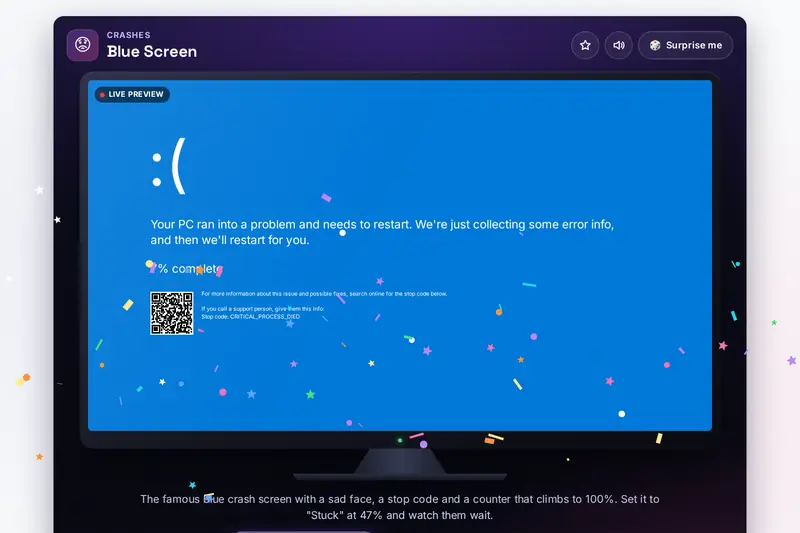
Table of Contents
Overview
The fake update is one of the oldest and friendliest computer jokes: a friend steps away, comes back to a screen that says "Working on updates, 0% complete", and spends a long minute wondering whether to wait. Prank Screen Studio collects that joke and twenty-one more in one place, makes each of them look surprisingly real, and adds a calm side for when the joke is over.
There are crash screens (the blue one with the sad face, the newer black one, the old text-mode one and a slow system crash), updates and setup screens, Automatic Repair, two disk checks, an old boot screen, a software installer that sticks at 99 percent, the lock screen, shutting down, restarting and the monitor's own No Signal box. For film fans there is a hacker terminal that pours out code as you type, falling code rain, a joke virus scan and a screen that cracks where you tap. And there is a whole pretend desktop with a Start menu, notifications and windows you can drag, where Notepad, Calculator, Paint, Files and a Terminal really work.
Every screen can be changed: its words, where the percentage starts, how long it takes, whether it gets stuck, the stop code and what happens at the end. Screens can play one after another in combos, loop round as a show, or be designed from scratch in the creator. When the moment is right, a Gotcha with confetti turns the panic into a laugh. Esc always ends a screen, nothing is installed or changed on the computer, and no screen can ever show a phone number, a link or a command to type.
The calm side is twelve living nature scenes, such as rain running down a window, a meadow in the wind, a waterfall, the Milky Way over a lake and a crackling fire, each with its own sound made in the browser. In the Moods tab, MoodScape turns them into twenty moods with sounds you mix yourself, a sleep timer, a focus timer, meditation bells, a breathing guide and playlists, for a quiet evening, a long piece of work or a screen saver on a big display.
Key Features
22 Pretend Screens
Crashes, updates, repairs, disk checks, power screens, hacker films and a desktop.
Surprisingly Real
Uneven progress with pauses, the familiar spinning dots, real stop code names.
A Working Desktop
Start menu, clock, notifications, draggable windows and apps that work.
Everything Customisable
Words, percentages, timing, getting stuck, stop codes and endings.
Combos and Show Mode
Screens one after another, or a loop for a stall, a class or a stream.
Your Own Screens
Backgrounds, words, spinners, progress bars, countdowns and effects.
The Gotcha
Confetti, streamers and a fanfare at the press of Alt+G.
Safe Exits
Esc always ends it; three taps in the corner on a touch screen.
12 Calm Scenes
Rain, a meadow, a jungle, a waterfall, butterflies, stars, fire, waves and more.
MoodScape
20 moods, a mixer of 24 sounds, timers, a breathing guide and playlists.
How to Use
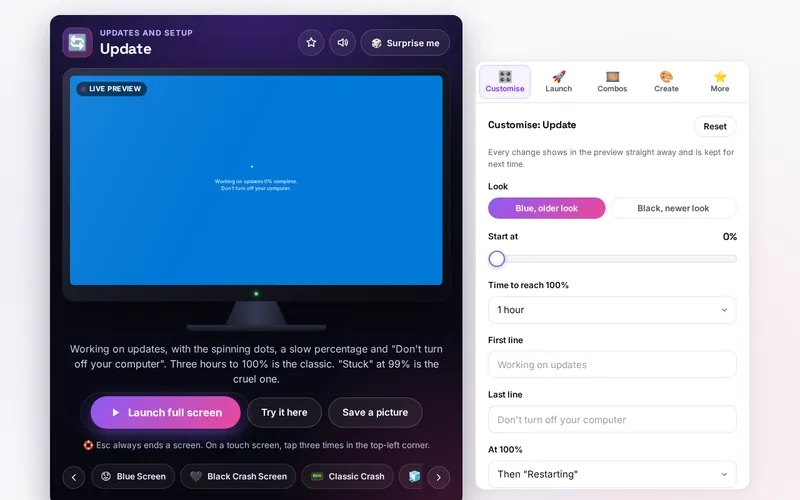
- Choose a screen - Pick one in the gallery or the strip under the monitor, or press Surprise me. The monitor shows it live.
- Make it yours - In the Customise tab, change the words, where it starts, how long it takes, whether it gets stuck and what happens at the end.
- Set the launch - In the Launch tab, choose a few seconds of black before it starts, a hidden pointer, the sound and when the Gotcha comes.
- Launch full screen - The screen fills the display. Walk away and wait.
- Reveal it - Press Alt+G for the Gotcha, or let it come by itself.
- Go back - Press Esc, or tap three times in the top-left corner on a touch screen.
The 34 Screens at a Glance
- Crashes - Blue Screen (with a sad face, a percentage, a stop code and a QR code that opens this page), Black Crash Screen (the newer, quieter one), Classic Crash (white text on deep blue, with a memory dump counter) and System Crash (a desktop that freezes, glitches and falls over).
- Updates and setup - Update (blue or black), Classic Update with stages, Installation ("Hi", "This might take several minutes"), Automatic Repair with its famous loop, Disk Check, Classic Disk Check, Boot Screen (ending in "No bootable device") and a Software Installer that sticks at 99 percent.
- Power and lock - Lock Screen (a key slides it up to "Looking for you", then Welcome; there is no password box, on purpose), Shutting Down, Restarting and No Signal.
- Hacker and movie - Hacker Terminal (ACCESS GRANTED, ACCESS DENIED and six movie windows), Code Rain in any colour with your own message, a joke Virus Scan and a Cracked Screen.
- Desktop and messages - The Desktop Simulator with its apps and prank events, and Error Messages that multiply every time someone presses OK.
- Calm and nature - Rainy Window (drops that merge and slide, glass to draw on, an optional storm), Flower Meadow, Jungle, Waterfall, Butterfly Garden, Star Gazing (with time-lapse trails and deep space), Fireplace or campfire, Ocean Waves, Aquarium (click to feed the fish), Snowy Night, Northern Lights and Cherry Blossoms. They are calm scenes, not pranks.
MoodScape: Calm Moods, Sounds and Timers
Open the Moods tab beside the monitor and the monitor shows a mood instead of a screen. A mood is a calm scene with a mix of sounds made in the browser: rain and wind for Rainy Day, heavy rain and thunder that follows the lightning for Thunderstorm, waves and gulls for Ocean Waves, a fire, rain and a ticking clock for Cozy Fireplace, a deep hum and soft pads for Deep Space, chatter, cups and a gentle piano for Coffee Shop. There are twenty, each marked with what people often choose it for: relax, sleep, focus or meditate. Every mood also has its own card in the gallery, under All and under Moods.
- Mix it yourself - Every sound has its own level, and any of 24 can be added: rain, heavy rain, thunder, wind, songbirds, tropical birds, crickets, frogs, an owl, a stream, a waterfall, ocean waves, seagulls, a fire, bubbles, deep water, wind chimes, a singing bowl, a bamboo fountain, cafe chatter, cups and spoons, a ticking clock, distant traffic and a space hum. Add gentle music or a steady tone, and keep the mix as a mood of your own.
- Timers - The sleep timer fades the sound out over the last minute and darkens a full screen. The focus timer rings a bell when a break begins and two when it ends. The meditation timer rings a bell to begin and three to end. They keep time even when the page is in the background.
- On the screen - A breathing circle that grows as you breathe in and shrinks as you breathe out (four patterns, from calm in 4, out 6 to 4-7-8), a large clock and your running timers, over any mood, on the monitor and in full screen.
- Playlists - Moods one after another, faded into each other, with the picture changing too: Drift off to sleep, Deep focus, Around the world, or your own.
The sounds are something to enjoy, not a treatment. The steady tones and binaural beats are offered for people who like them; no tone or beat has been shown to heal anything, so none is claimed here. A mood starts at once, never shows a Gotcha, and Esc ends its full screen as always.
Ten Ways to Make It Look Real
- Start in the middle - A percentage of 37 looks as if it has been running for a while; 0 looks new.
- Go slow - Real updates take an hour or more. Choose a long time, or Stuck at 99 percent.
- Hide the pointer - Real system screens have none. "Hides when still" brings it back only when the mouse moves.
- Stay quiet - Real crash and update screens make no sound. Switch the sound effects off for those.
- Use a start delay - Press Launch, walk away, and let the screen appear after 10 seconds of black, when the browser's own full screen message has gone.
- Match the computer - Newer computers show the black crash screen; people who know the blue one will not expect it.
- Pick a believable stop code - CRITICAL_PROCESS_DIED and DPC_WATCHDOG_VIOLATION are common; the joke codes give it away.
- Let it grow - The System Crash looks normal for as long as you choose before it falls apart.
- Chain it - A combo of Update, Restarting and the Lock Screen feels like a real evening update.
- Reveal it soon - The best prank ends in a laugh within a minute or two. Keep Alt+G ready.
Pranks Done Kindly, and How to Spot a Real Scam
Choose someone who will laugh, at a relaxed moment, on a computer you are allowed to use. Never prank someone about to present, submit an exam or meet a deadline, and never someone who might truly panic. The screen lives in a browser tab and changes nothing, but leave the person's work and files alone, and close it when the joke is done.
The same pictures are used by scammers, which is why this studio refuses to put a phone number, a web address, an email address or an instruction to type a command on any screen, including the ones you design. Remember the rule that keeps people safe: a real crash or update screen never shows a number to call, never asks you to pay, and never tells you to press keys and paste a command. A page that does is a scam. Close the tab, or restart the computer, and do not call the number.
The screens are our own drawings in the style of familiar system screens, such as the Windows blue screen. They use no company's logo, and Prank Screen Studio has no connection with Microsoft, Apple or any other operating system maker.
Checked before publishing: 482,471 cases: every screen's options cleaned against hostile values, the refusal of phone numbers, web addresses, email addresses and command instructions in many spellings and scripts, the uneven progress that always reaches its end on time, the spinning dots, the calculator, combos, your own screens, the badges, picture headers, the moods, mixes and playlists, the breathing guide, the timers and the backup file. A second check of 122,086 cases, written in another programming language and sharing no code, works out the same answers on its own, and compares the stop codes with Microsoft's published list. The page was then tried in a test browser at phone and desktop sizes in both themes, launching every screen in full screen and ending it with every way out.
Frequently Asked Questions
The questions people ask most are answered on the tool page, just below the tool. The full list of 42 questions, from getting out safely to the pretend desktop, error messages, combos, MoodScape, your own screens and privacy, is on the tool's questions and answers page, and the help guide walks through every screen and mood and lists the 28 badges.
Privacy & Security
This tool has no upload step, no account and no server-side storage. Every screen is drawn inside the browser tab; nothing is installed, no setting is changed and no file is touched. Your favourites, settings, combos, your own screens and your own moods and playlists are kept only in this browser's storage, and nothing is written until you change something or launch a screen. Words typed on the pretend desktop are never kept.
The tool asks no outside service for anything and never asks for the camera, the microphone or your location; the only thing it asks the browser for is to fill the screen and keep it awake while a screen runs. Pictures and backups are made in your browser. Like every page on ZeroDataUpload, the tool page shows ads through Google AdSense and counts visits with Google Analytics; neither receives what you type. The Privacy Policy and the cookie banner explain both.
Ready for your first prank? It's free, private, and runs entirely in your browser.
Open Prank Screen Studio →Related

Last Updated: November 25, 2026