
FlowForge: a Bulk File Renamer and Four Workflow Tools
Rename many files with every new name shown first, then clean tables, email lists, schemas and forms, in your browser
Guide reviewed 12 November 2026 by Milan Salvi. How we write and correct guides.
Open FlowForge →Step-by-step help guide and questions and answers for this tool.
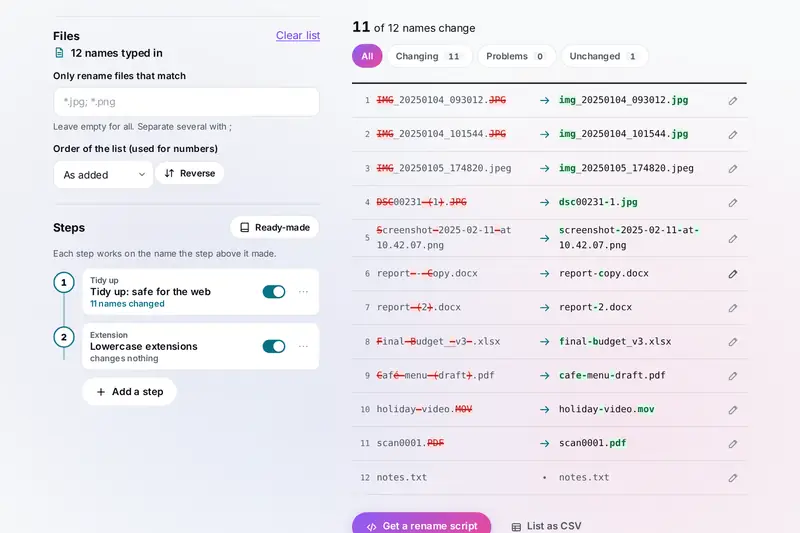
Table of Contents
Overview
Some jobs eat an afternoon: giving three hundred holiday photos names that sort by date, cleaning last month's export before it goes into a report, tidying a mailing list full of typos and repeats, writing the types for a new piece of data, putting together a sign-up form. FlowForge does each of them as a list of small steps you can see, change and run again, and shows the result before anything is final.
The first tool renames files. You add steps such as Remove copy marks, Number or New name from a pattern, and every new name appears beside the old one, with the clashes and the names Windows would refuse marked, before a single file changes. The other four clean CSV and Excel tables, check and tidy email lists, turn example data into a JSON Schema with TypeScript, Zod and Pydantic, and build forms that check their own answers.
All of it runs in your browser: your files, tables, lists and answers stay on your device.
Key Features
Rename by Steps
Replace, add, remove copy marks, change case, number, build from a pattern, tidy and fix extensions, in any order.
Every Name Shown First
Old and new names side by side, with what changed marked and every clash or Windows problem found first.
Photos by Date Taken
The date a photo was taken, read from the photo itself, its size and camera, as parts of the new name.
Undo or a Script
Rename in the folder with Undo, download renamed copies, or take a script that lists every rename and asks first.
Tables by Steps
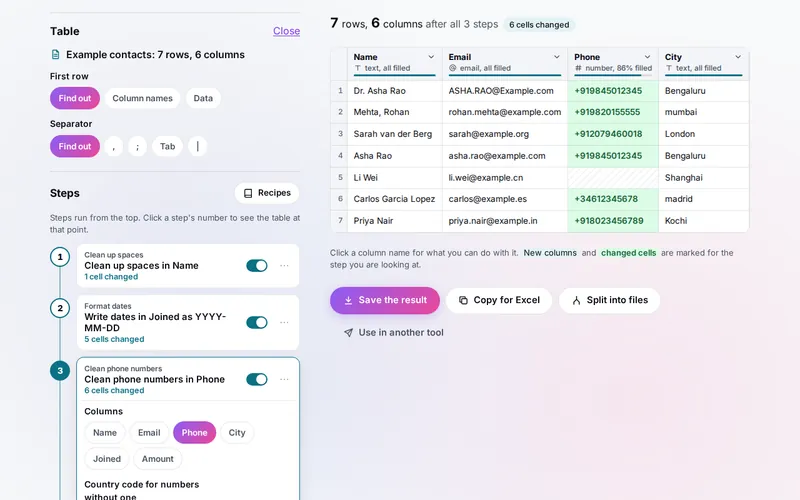
Split, join, clean, format dates and numbers, remove duplicates, look up a second table, and save it as a recipe.
Email Lists Checked
Addresses found in any text, typos fixed and shown, repeats and throwaway addresses taken out, on your device.
Schema and Types
A JSON Schema, TypeScript, Zod and Pydantic from example data or a plain list of fields, and data checked against it.
Forms That Check Themselves
Fields built one by one, answers collected into a table, and the form saved as one web page that checks every answer.
How to Use
- Add files or names - On Rename files, choose a folder, add files or drop them on the page, or type a list of names.
- Build the new names - Add steps on the left, or start from a ready-made set such as Photos by date taken. Each step says how many names it changed.
- Check, then rename - Look through the list of old and new names, fix any marked problem, then rename in the folder (with Undo), download a zip, or save a script.
- Clean a table - On Tables, open a CSV or Excel file or paste cells, click a column name or add steps, and save the steps as a recipe for next time.
- Tidy an email list - On Email lists, paste addresses in any form and copy the clean list, or send it in batches.
- Make types and forms - On Schema and types, paste example data or a list of fields; on Forms, build a form and save it as a web page.
How the Tool Works It Out
- New names - Each name is split into a name and an extension (photo.final.JPG is photo.final and JPG; .gitignore has no extension), and the steps run in order on that pair, each on the result of the one above. A number counts the files in the order of the list, or again in each folder.
- Problems - Every new name is compared with every other new name and with the names of files that keep their names, in the same folder and ignoring capital letters, since Windows and Mac treat A.JPG and a.jpg as one file. Names longer than 255 bytes, empty names and a / are problems; characters Windows does not allow and names it keeps for itself are warnings.
- Dates in tables - A date such as 03/04/2025 is read as day first or month first from the column: a first number above 12 means day first, a second above 12 month first, and otherwise the order this device uses, unless you choose. Excel's own day numbers are counted from 30 December 1899, with Excel's extra 29 February 1900 allowed for.
- Email addresses - The tool reads the written address only: its parts, its length, the allowed characters and whether its ending is on IANA's list of domain endings. A domain one or two letters away from a well-known mail domain is suggested as a typo. No mail server is contacted.
- Schemas - Every example is read field by field: which fields always appear, what kind of value each holds, and whether all the text values of a field look like dates, emails or links. The same description is then written as JSON Schema, TypeScript, Zod and Pydantic.
- Checked before publishing - We compared the tool with references made separately: 171,201 cases in 15 groups: every rename step and the name checks on 78,000 names, the rename scripts run for real on files with hostile names, 12,600 dates and Excel day numbers, CSV read back by a standard CSV reader, Excel files read back by a spreadsheet library and files made to break the reader, every table step against a separate version of its rules, numbers written as people write them, tables to JSON with names such as __proto__, 15,000 email addresses checked and fixed, learned schemas checked by a standard JSON Schema validator and the tool's own check compared with it on 4,000 schemas, TypeScript and Zod code compiled and Pydantic models run with the example records, the list of fields, form answers, 21,000 saved states made to break the tool and long hostile texts timed. The original version let a column or field named __proto__ change every object of the page, ran out of memory on {n:100000000}, asked nothing before its scripts renamed files and let a typed name run commands in its Command Prompt script, lost one-cell empty rows in CSV files, unpacked Excel files without a limit, stopped on a long field line and on a form asking for a billion items, took over 15 seconds on twelve of eighteen long texts and wrote example records that did not fit their own schema; that is fixed.
Renaming Safely
Renaming hundreds of files is quick to do and slow to undo, so FlowForge shows every new name before anything changes, and leaves alone any file whose new name would clash with another, be empty or be too long. When you rename in the folder (Chrome and Edge on a computer), Undo puts the old names back straight afterwards. When one file's new name is another file's old name, or only capital letters change, the file goes through a temporary name first, so nothing is ever overwritten.
Other browsers can download renamed copies as a zip, which leaves your files as they are, or save a small script to run in the folder. Open the script in a text editor first if you like: it lists every rename, and when you run it, it shows that list again and changes nothing until you type YES. A Windows script leaves out names Windows does not allow and says how many.
Parts of FlowForge sit near other tools on the site, and each has its own job. ToolForge finds duplicate files and can list cleaned names in a rename script, but does not build new names step by step. DataForge and CodeForge, and ToolForge's Text to table and Table to CSV, change tables and data from one format to another; the Tables tool here changes the table itself with steps you can run again on the next file. Nothing else on the site cleans email lists, writes JSON Schema and types from examples, or builds forms.
Frequently Asked Questions
The questions people ask most are answered on the tool page, just below the tool. The full list of 33 questions, from renaming files and the scripts to tables, email lists, schemas and forms, is on the FlowForge FAQ page, and every part of the tool is explained step by step in the help guide.
Privacy & Security
This tool has no upload step, no account and no server-side storage. Files, tables, email lists, example data and form answers are read and worked on by your browser on your device; they are never sent anywhere. Your steps, recipes and settings, the open table, the texts and the answers are kept only in this browser until you clear them.
The tool asks no outside service for anything: email addresses are checked without contacting any mail server. A form you save as a web page can send its answers to an https address of your own when someone fills it in; that is your page, and this site never sees the answers. Like every page on ZeroDataUpload, the tool page shows ads through Google AdSense and counts visits with Google Analytics; the Privacy Policy explains both.
Ready to rename that folder? It's free, private, and runs entirely in your browser.
Open FlowForge →Related

Last Updated: November 3, 2026