
BatteryPro
Watch your laptop or phone battery in the browser, get a loud alert when it reaches the charge limit you set or runs low, count your charge cycles and learn your charging habits, without a single reading leaving your device
Guide reviewed 7 October 2026 by Milan Salvi. How we write and correct guides.
Open BatteryPro →Step-by-step help guide and questions and answers for this tool.
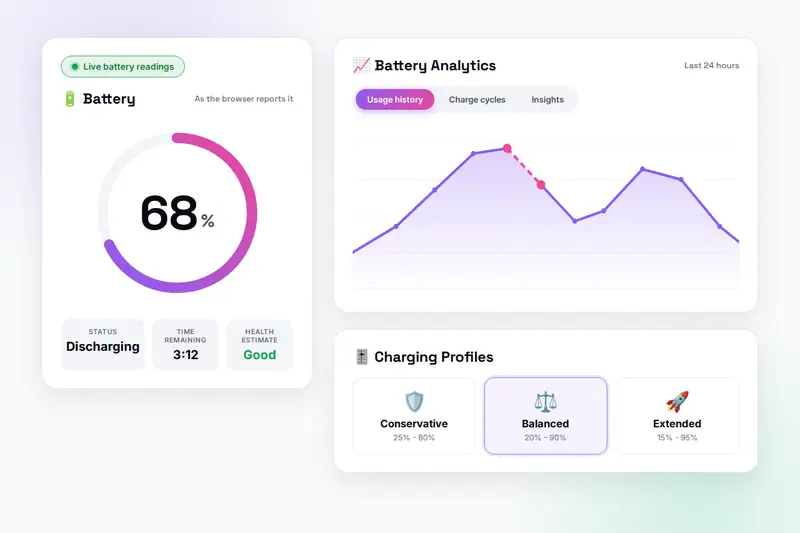
Table of Contents
Overview
BatteryPro is a free battery monitor that runs entirely in your browser. Open it in Chrome, Edge or Opera and the ring fills to your current charge level, with the charging state, the time remaining and a health estimate underneath. Set a charge limit, 80% is the kindest to the cells, and when the battery reaches it a beep loops, a notice appears on the page, the tab title flashes and the browser shows a notification if you allowed it, so you can unplug at the right moment instead of watching the tray icon. A low-battery alert works the same way at the other end. Three profiles set both alerts in one click, custom profiles save your own ranges, Night mode caps the limit at 80% overnight and Weekend mode adds 5% on Saturday and Sunday.
Leave the tab open and the tool counts a charge cycle each time you unplug above half the limit, draws the level over time with the hours the page was closed marked as a dashed stretch, and, with predictions on, records when and at what level you charge, so after a few days it can tell you when you usually plug in, your best charging window and what kind of user you are. The Insights tab turns the history into an average level, an efficiency score from the measured discharge rate, an eco score for your charging habits and a rough estimate of the carbon a lower limit saves. Export writes everything as CSV or JSON, and Import brings it back on another computer.
The tool is honest about what a web page can know. Browsers pass on the level, the charging state and two time estimates, and nothing else: no capacity, no wear, no lifetime cycle count. Everything beyond those four readings is worked out from them over time and labelled as an estimate; the page tells you where the operating system's own battery report lives for the real wear figure. A page also cannot cap the charging itself, which is why the limit is an alert. There is no account and no server: the readings, the history and the settings live in your browser's storage on your own device.
Key Features
Live Readings
The level on a ring, Charging or Discharging, the browser's time to full or to empty, held steady so it does not flicker, and a health estimate from Excellent to Poor.
Charge Limit Alert
Any limit from 20 to 96%. When it is reached: a looping beep in your chosen tone and volume, an on-page notice, a flashing tab title, a tab-icon badge and a browser notification.
Low-Battery Alert
A threshold from 10 to 30% that fires the same way while discharging, and stops the moment the charger goes in.
Profiles and Smart Modes
Conservative, Balanced and Extended plus up to twelve custom profiles with their own icons; Night mode caps at 80% overnight, Weekend mode adds 5%, and a switch keeps the screen awake while you monitor.
Cycles and Usage Chart
A cycle counted each time you unplug above half the limit, by weekday; a level chart with one point per change and the hours the page was closed drawn as a dashed pink stretch.
Pattern-Based Assistant
From your own samples: your next charge time with a confidence, your best charging window, a lifespan band and your usage type, all named as the estimates they are.
Insights and Suggestions
Average level, efficiency from the discharge rate, an eco score for your habits, a carbon estimate, and suggestion cards for the time of day with one-click actions.
Export, Import and a Simulated Battery
CSV for a spreadsheet, JSON for a full backup that Import merges back; and in browsers without readings a simulated battery, clearly labelled, so every control can still be tried.
How to Use
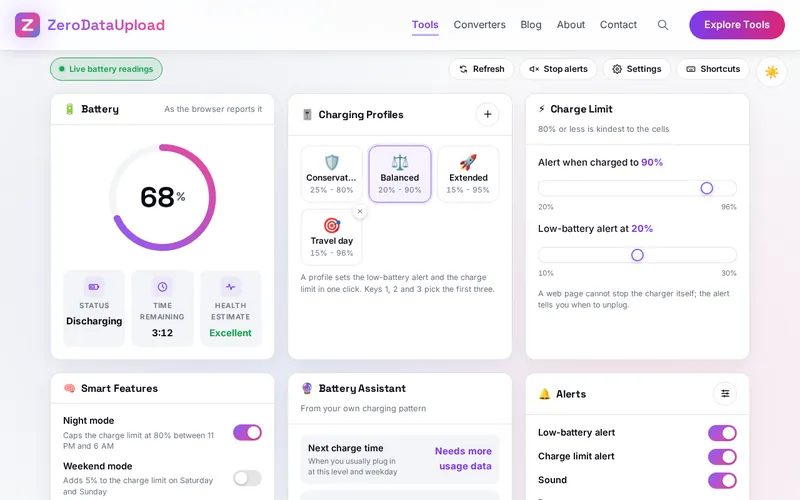
- Open the page in Chrome, Edge or Opera - Those browsers report the battery to web pages. The badge at the top says "Live battery readings"; Firefox and Safari show a simulated battery instead.
- Pick a profile or set your own limits - Conservative, Balanced or Extended in one click, or move the two sliders in the Charge Limit card. The plus button saves a custom profile.
- Turn on the alerts you want - Keep the two alerts on, choose whether they beep, and click Enable so the browser can notify you behind other windows. Test plays one so you know what to expect.
- Switch on the smart features - Night mode for overnight charging, Weekend mode for days out, Keep the screen awake while monitoring, and Pattern-based predictions for the Assistant.
- Leave the tab open - Work as usual; when the limit is reached, unplug and the beep stops on its own. The charts and the Assistant fill in over the following days.
- Export when you want a record - CSV for a spreadsheet, JSON for a backup; Settings also holds Import and Clear all data.
What a Browser Can and Cannot See
Every figure in the tool comes from one of two places, and knowing which tells you how much weight to give it:
- Reported by the browser - The charge level, whether the charger is connected, and the operating system's estimates of the seconds until full and until empty. Chromium browsers provide them on Windows, macOS, Linux, ChromeOS and Android; Firefox and Safari provide none. The time estimates are often missing for the first minute after plugging or unplugging.
- Worked out by the tool - Time remaining when the browser gives none, from the measured rate of change; the charge cycles it has seen; the discharge rate, the average level, the efficiency and eco scores, the health score, the lifespan band and the carbon figure; and the predictions, from the stored samples.
- Visible to nobody in a browser - The design capacity and the capacity today, the lifetime cycle count, the cell voltage and temperature. Those are in the operating system's battery report: on Windows run
powercfg /batteryreport; on a Mac open System Information, Power; on Android look under Settings, Battery. Use that for the real wear figure and BatteryPro for day-to-day monitoring and alerts.
A web page also cannot cap the charging. Laptop makers' own software can, and if yours offers a charge threshold, use it; BatteryPro's alert is for the days you want a different limit, and for devices without such a setting.
Frequently Asked Questions
The questions people ask most about BatteryPro are answered on the tool page, just below the tool. The full list of 39 questions, from storage and privacy to troubleshooting, is in the BatteryPro FAQ, and the help guide walks through every feature step by step.
Privacy & Security
Your battery level, your charging times and your habits say a lot about how you use a computer. BatteryPro has no upload step and no server-side storage: the readings, the cycle counts, the patterns and the settings live in your browser's storage on your own device, and the only copy that ever leaves it is the file you export yourself.
The tool asks for two browser permissions, both optional and both only when you click: notifications, so an alert can reach you behind other windows, and keeping the screen awake while you monitor. Like every page on ZeroDataUpload, the tool page shows ads through Google AdSense and uses Google Analytics; the Privacy Policy and Cookie Policy explain what those services collect and how the cookie banner controls them. Your battery readings are never part of it.
Ready to try BatteryPro? It's free, private, and runs entirely in your browser.
Open BatteryPro →Related

Last Updated: October 7, 2026