
Flip the Coin
A realistic 3D coin flipper with physics, sound effects, and detailed statistics
Guide reviewed 2 October 2026 by Milan Salvi. How we write and correct guides.
Open Flip the Coin →Step-by-step help guide and questions and answers for this tool.

Table of Contents
Overview
Flip the Coin tosses a 3D coin in your browser and tells you heads or tails. Each result comes from the browser's secure random number generator, so with the default settings both sides are equally likely and no flip depends on the one before; the spinning coin only acts out a result that has already been decided. You can flip by clicking or tapping the coin, with the Flip button, or with the Space or Enter key.
Around the coin are the things a real coin cannot do: a running count of heads and tails with percentages, your current streak and the last ten results, an Auto mode that keeps flipping at an interval you set, a slow-motion view and a replay of the last toss, custom pictures for each face, and a bias slider for demonstrations. The statistics can be exported as a file, which makes the tool useful in a classroom as well as for settling who goes first.
What to Expect from a Fair Coin
A fair coin is predictable only over many flips, and the short runs surprise most people:
- Even splits are rare. In 100 flips, exactly 50 heads and 50 tails happens only about 8 percent of the time. Something between 40 and 60 heads is normal; a split of 60 to 40 or more lopsided turns up in about one set of 100 in eighteen.
- Streaks are common. In 100 flips, a run of six or more of the same side happens more often than not. A streak says nothing about the next flip, which is still fifty-fifty.
- Percentages settle slowly. After ten flips, 70 percent heads is unremarkable; after a thousand, anything outside about 47 to 53 percent would be worth a second look. Auto mode is the quickest way to watch the percentages close in on 50.
A coin flip is a good way to break a tie between options you could live with either way, or to pick who starts a game. It is a poor way to make a decision that matters, except as a test: if you feel disappointed by the result, that feeling tells you what you really wanted.
Key Features
Realistic 3D Physics
Watch a beautifully rendered coin spin through the air with adjustable physics intensity: Light, Normal, or Heavy. The animation mimics real-world coin toss physics for an authentic experience.
Custom Coin Themes
Choose from Classic Gold or Silver themes, or upload your own PNG/JPEG images for both heads and tails sides. Create personalized coins like Cat vs Dog, Team A vs Team B, or any design you want.
Detailed Statistics Tracking
Automatically tracks total flips, heads/tails counts with percentages, current streak length, and your last 10 results. Export all statistics to a JSON file for external analysis.
Auto-Flip Mode
Set the coin to flip automatically at configurable intervals from 0.5 to 5.0 seconds. Start and stop with a single click to accumulate hundreds of flips for probability experiments.
Slow-Motion Replay
Watch your flip in slow motion at 30% speed to appreciate the 3D animation in detail. The replay feature lets you re-watch the last flip without counting it as a new result.
Sound Effects & Haptics
Immersive whoosh and clink sound effects with adjustable volume (0-100%). On mobile devices, enable haptic vibration feedback for a tactile flipping experience.
Bias Control
Adjust the coin bias from 0% (always tails) to 100% (always heads) with 50% as the default fair coin. Useful for teaching probability concepts or creating weighted decisions.
Accessibility Options
Reduced motion mode for users sensitive to animations, keyboard shortcuts (Spacebar/Enter) for flipping, high performance mode for slower devices, and optional FPS counter display.
How to Use
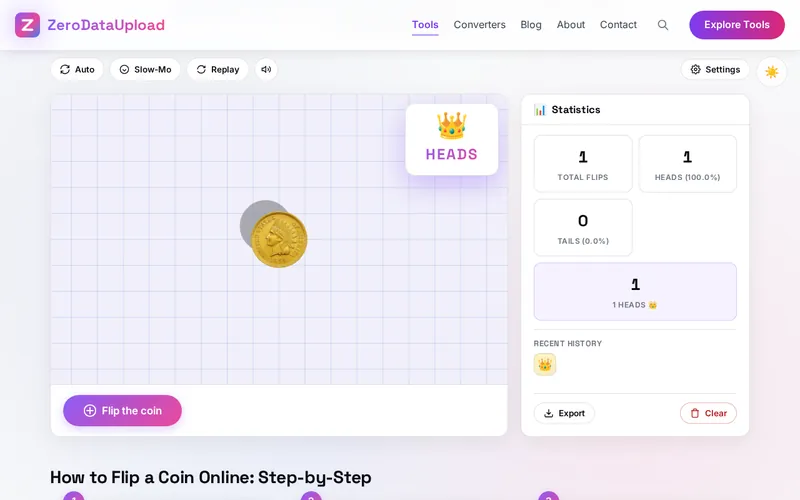
- Open the App - Navigate to Flip the Coin in your web browser. The app loads instantly with a shiny gold coin ready to flip. No installation or account required.
- Flip the Coin - Click or tap the coin directly, press the "Flip Coin" button below it, or use the Spacebar or Enter key on your keyboard for a quick flip.
- Watch the Result - The coin spins through the air with realistic 3D physics and lands showing either "HEADS" or "TAILS" with its corresponding icon.
- Check Your Statistics - View the statistics panel at the bottom right to see your total flips, heads/tails breakdown with percentages, current streak, and recent flip history.
- Customize Your Experience - Click the gear icon to open Settings where you can change coin themes, adjust physics intensity, set bias percentage, modify audio volume, and enable accessibility features.
- Use Special Modes - Try Auto mode for continuous automatic flips, Slow-Mo for a detailed slow-motion flip, or Replay to re-watch the last animation without adding a new result.
- Export Your Data - Click "Export" in the statistics panel to download your complete flip history and statistics as a JSON file for record-keeping or analysis.
Frequently Asked Questions
Privacy & Security
Flip the Coin operates entirely within your web browser. All coin flip physics, random number generation, statistics tracking, and custom coin images are processed locally on your device. No flip results, statistics, or uploaded images are ever transmitted to any server. Your settings and statistics persist in your browser's local storage and remain completely under your control. You can export or clear your data at any time.
Ready to try Flip the Coin? It's free, private, and runs entirely in your browser.
Open Flip the Coin →Related

Last Updated: February 28, 2026